What's new

New features and improvements in FitterPal, as we release them.

October 2026

Use stock from SmartStages

Log inventory on a job from the Install and Ordering stages, and see those lines on the step.

On SmartStages Install and Ordering, you can tap Use stock next to the other add actions.

It opens the same Use stock flow as the job’s Stock used tool: take materials from a place or van, or buy them for the job. Lines you add from that step show under Stock on the stage. You need inventory access for the action to appear.

Open jobs

Purchases for inventory

Track orders and deliveries as purchases on an inventory item, including stock bought at the merchant for a job.

Orders and deliveries on an inventory item are now one place: Purchases. Log what you ordered, what arrived, or what you picked up at the merchant for a job.

On an item

Open an item and use Purchases. Tap + Add purchase, choose Ordered or Arrived, set the supplier, quantity, and optional price, then choose where it goes: a place or van, or Direct to job.

Ordered lines stay on the On order list until you Mark arrived. You can arrive part of an order and leave the rest open.

Direct to a job

When you buy materials at a builders merchant for a specific job, set the destination to that job and save as arrived. The quantity is marked used on the job for materials totals. It does not add to yard or van stock.

From a job’s Stock used tool, open Use stock and choose Buy for this job to log the same New purchase card without leaving the job. It always goes straight to that job (no stock destination).

Photos and price

Attach photos for order confirmations or receipts. Prices update last paid. Arrivals into a place or van also update average cost as before.

Open inventory

Reserve stock for a job

Hold inventory for a job from the Stock used tool, then mark it used when it leaves the yard. Reserved lines show under Inventory.

You can now reserve materials from inventory against a job, then mark them used when they leave the yard or van.

On the job

Open Stock used on the job page (add it from Add to this job if it is not already there). Tap + Use stock, search for an item, choose where to take it from, set the quantity, then pick Used now or Reserve for job and Add to job.

Reserved lines show a Reserved badge with Mark as used. Used lines can be undone back to reserved. At the bottom of the tool, Orders plus stock marked used make up the materials total. Reserved stock is not counted until you mark it used.

In inventory

Items with open reservations appear under the Reserved for jobs tab. The total column shows how many are reserved in blue. Open an item and use the Jobs section to mark used, remove a reservation, or Reserve for a job.

Open inventory

Introducing inventory management

Track materials in the yard and on vehicles, move stock, log deliveries, and get an email when a line runs low.

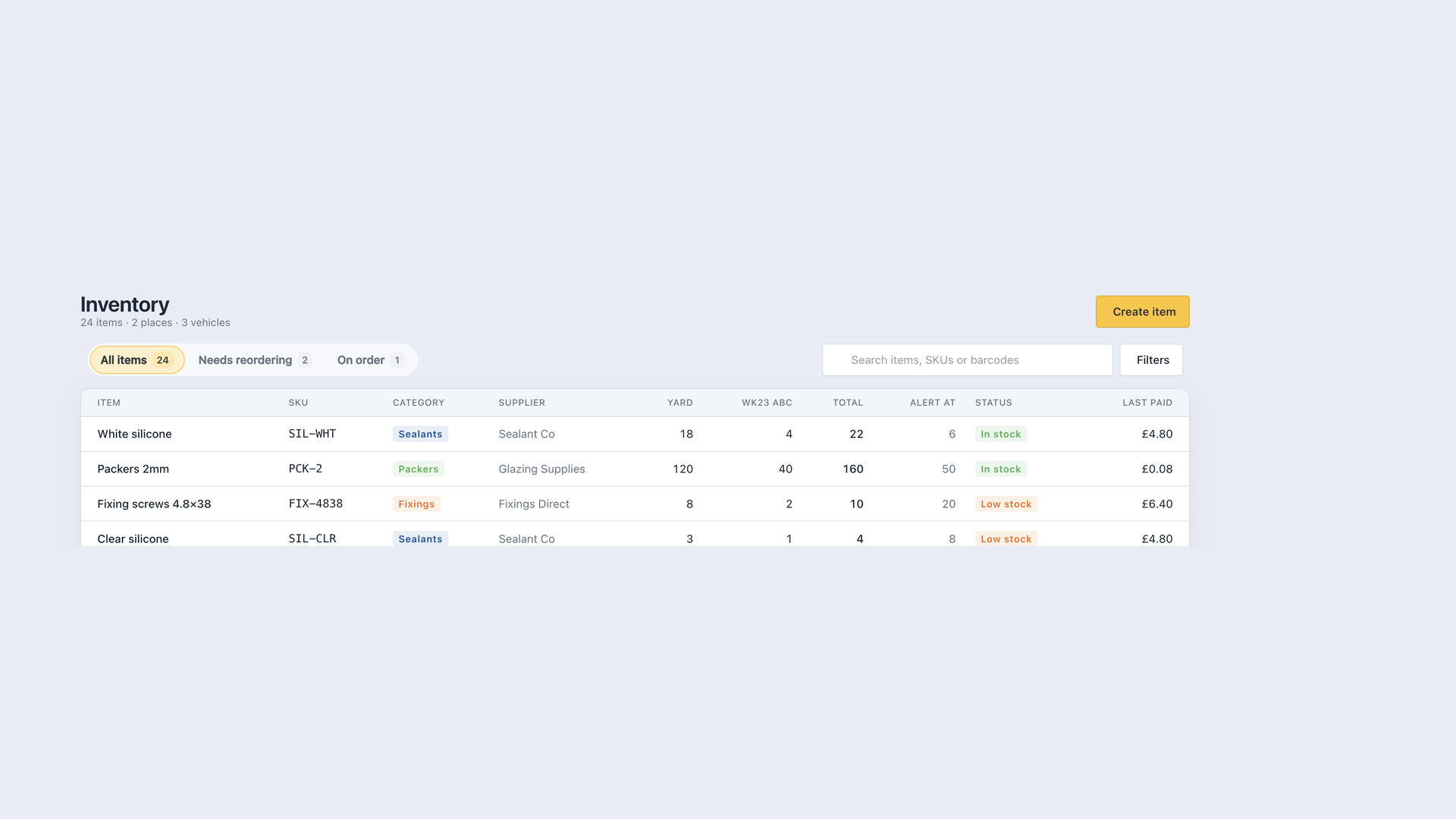
You can now keep a live count of the materials you actually hold: silicone, packers, fixings, and the rest. Open Inventory from the main menu.

Stock by item, place, and vehicle

Add a place for the yard or lockup, then add items. The same item can sit in more than one place, with a count in each. Every company vehicle also gets a place automatically, so van stock shows next to the yard.

The list is organised around items. Each row shows where the stock is. Use minus and plus to take one off or add one on, or type the quantity you can see on the shelf. Open an item to edit details, cost, supplier, alerts, and activity in one place.

Tabs help you jump to what needs doing: all items, needs reordering, on order, and reserved for jobs. Filter by place with the chips at the top. The gear icon opens locations so you can add or tidy places without leaving the page.

You can also reserve stock against a job from Inventory or from the job page Stock used tool, then mark it used when it leaves the yard.

Low stock and reordering

Set Alert when at or below on an item. The row is marked low as soon as the total reaches that number, and the page shows how many lines need attention.

Owners and admins get one email the first time an item drops to that level. Topping it back up clears the alert, so the next dip can email you again. Adding an item that is already under the level does not send that email.

You can also set a usual reorder quantity. Items below that target show under Needs reordering, so you can plan the next supplier order.

Orders, deliveries, and moving stock

When you place an order, open the item and use On order to record how many you ordered, who from, the expected date, and an optional reference. The item shows as on order and will not be flagged for reordering again.

When the goods arrive, tap Receive. The delivery form is already filled with the ordered quantity and reference. Choose Each or Total for the price paid (total works out the per-unit cost), put the stock into a place or vehicle, and attach up to five photos of the receipt, delivery note, or goods. Those photos sit on the activity with a larger preview. Tap one to open it full size.

When stock leaves the yard for a van, or comes back in, use Transfer. Choose where it is coming from, where it is going, and how many to move. Totals stay the same, and both sides are logged as a transfer.

Find an item quickly

Search Inventory by name, SKU, or barcode. Stock items also appear in the main search. Click a result to open Inventory already filtered to that item.

If you remove a supplier from your list, they can no longer be picked for new stock or orders. Existing lines keep the name with (deleted) so you can still see who supplied them.

Who can do what

Fitters can open Inventory and update quantities. Adding items, places, alert levels, on-order details, and archiving stays with owners and admins.
Open inventory

Introducing fleet management

Track company vehicles, MOT, insurance, tax, and service dates, with on-screen alerts and office emails before they are due.

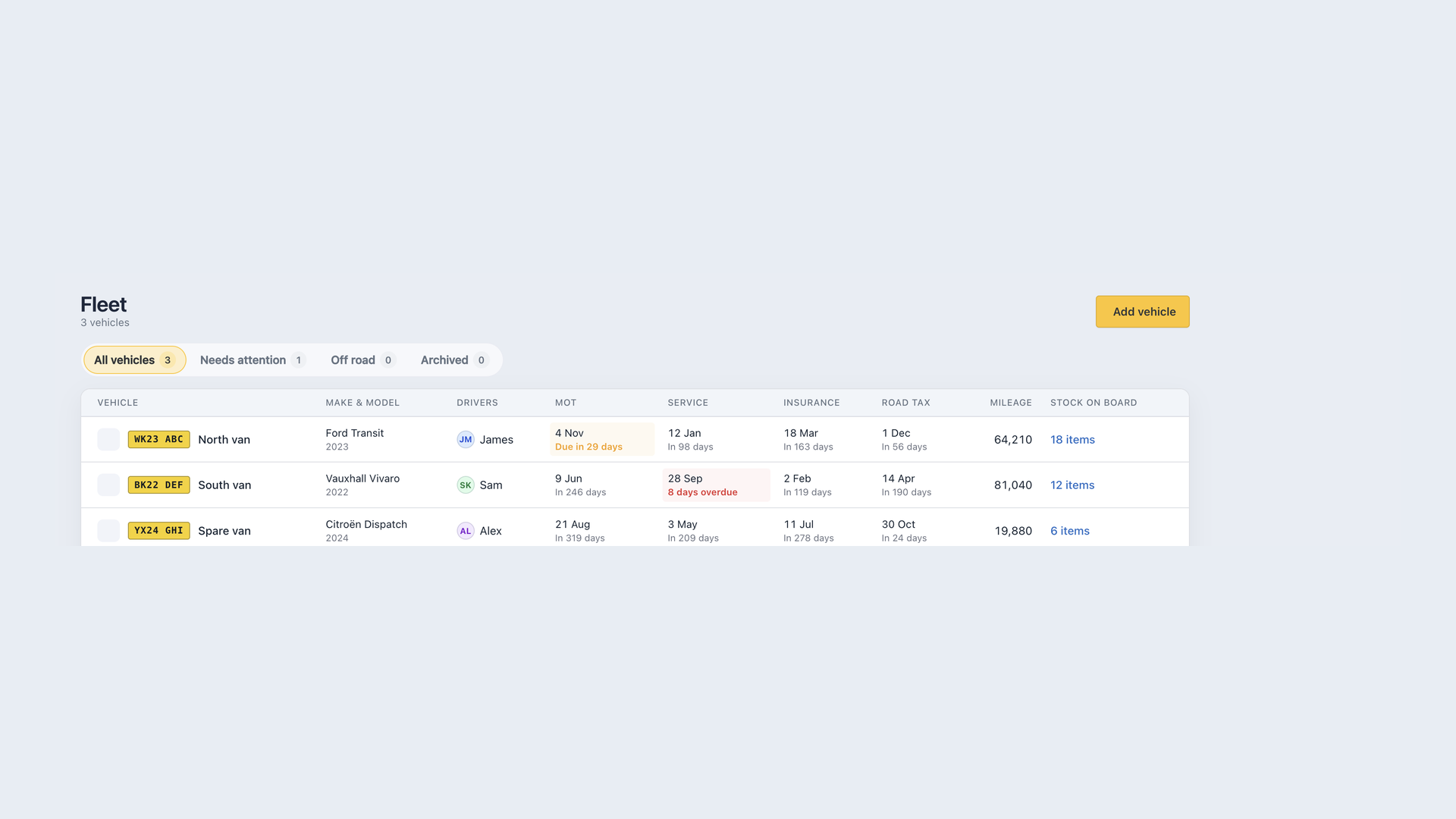
You can now keep company vehicles in one place, with the dates that keep them legal sitting next to the stock on board. Open Fleet from the main menu.

Vehicles at a glance

Add each vehicle with its registration, name, make and model, and type (car, van, or lorry). Assign drivers and log mileage as you go. The table shows registration plates, compliance status, and a link through to that vehicle’s inventory.

Open a vehicle to edit everything in one place: details, on road or off road, compliance, mileage history, notes, and archive. Mileage readings keep a history with the change between entries. Compliance updates can be marked done, booked, or as a note, with an optional cost.

Use Off road for vans that are temporarily out of service, and Archived for vehicles you no longer run. You can record a reason when you archive or restore.

MOT, insurance, tax, and service

Set the dates for MOT, insurance, road tax, and servicing. Each one is tracked on its own.

Fleet highlights anything due within 30 days or already overdue. An alert sits at the top of the page, and the Needs attention tab lists the vehicles that need action. Overdue dates show in red, dates within 30 days in amber, with relative wording such as due in 12 days or 3 days overdue.

MOT, insurance, and road tax are treated as annual renewals. Service uses the next due date you store.

Email reminders

Owners and admins get an email 30 days before each MOT, service, insurance, or road tax date, and again the day before. Each message lists the vehicles that need attention that morning, with a link straight to the needs-attention view.

The note under the fleet table is the same promise: those reminders go out, they are not only on the list.

Stock on the vehicle

Every vehicle gets an inventory location automatically. Stock on board shows in the fleet table, with a link to Inventory filtered to that vehicle, so compliance and materials live in one view.

Open fleet

Search for an address as you type

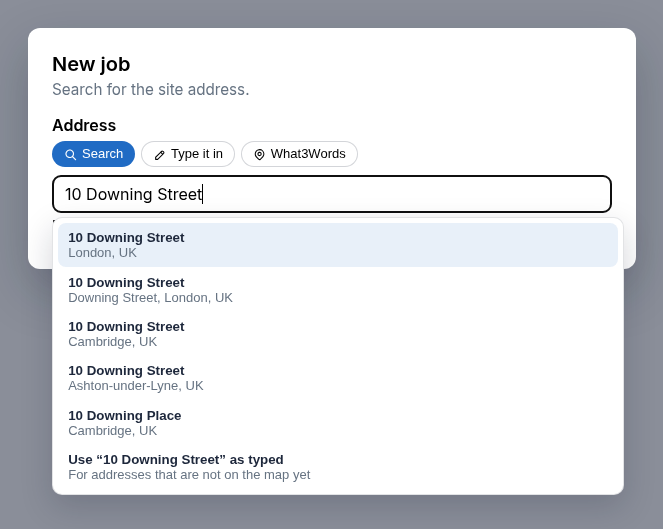
Find a job or customer address from suggestions, type one that is not listed, or add a What3Words location.

When you add or change an address, start typing and pick a match. A business you pick keeps its name as well as the street. This is on new jobs, new customers (including a customer added while you create a job), the customer page, and when you update a job or site address. Job directions can also leave from another address you search, type, or set with What3Words.

On create job, Search, Address, and What3Words sit in the same kind of control as job type: the one you pick is highlighted in soft yellow. A product you include uses that same highlight, and the plus turns into a check as you hover it.

If the place is not on the map yet, choose Address and write it yourself. For a plot, a field, or anywhere a street address does not help, choose What3Words and enter the three words, such as filled.count.soap.

On a job or customer you already have open, the address box is a smaller version of that control. Save address shows underneath once the address has changed, and the address and map update as soon as you save. A typed address can show a map even when the job did not have one yet. If the save does not go through, the address you typed stays so you can try again.

Directions from a What3Words start use that spot on the map. If you change that start before the lookup finishes, the route keeps the one you chose.

A place you pick keeps that map pin. If you type a different address, or switch a job back to the customer address, the previous pin is cleared so directions do not keep the old site.

Suggestions stay on top of dialogs, so you can pick one without them disappearing behind the window.

Create a job

September 2026

Quotes and invoices are easier to scan

Quotes and invoices lists now show job, customer, and status at a glance, with status tabs, clearer dates, and a simpler footer.

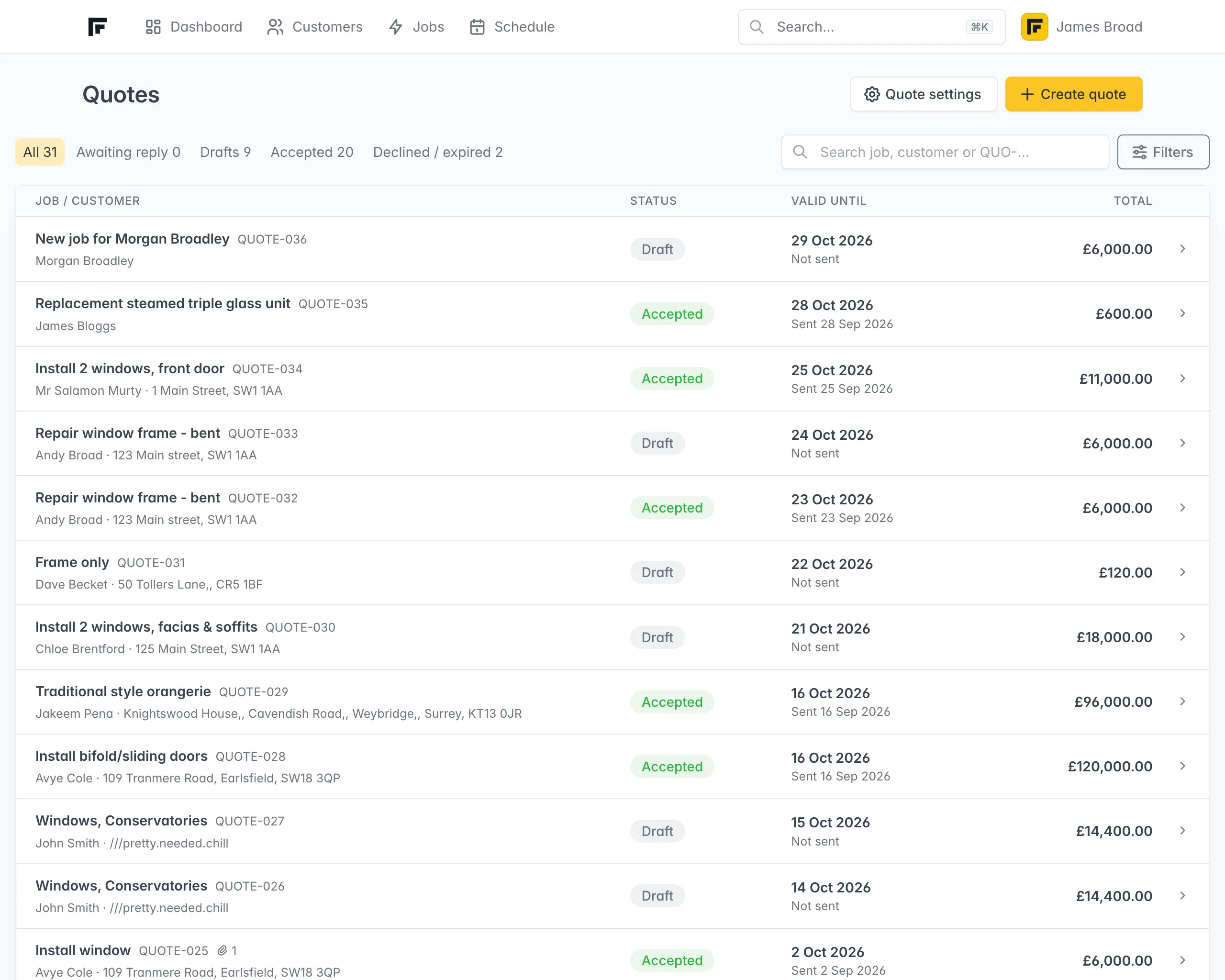
Quotes and invoices lists are denser and easier to scan.

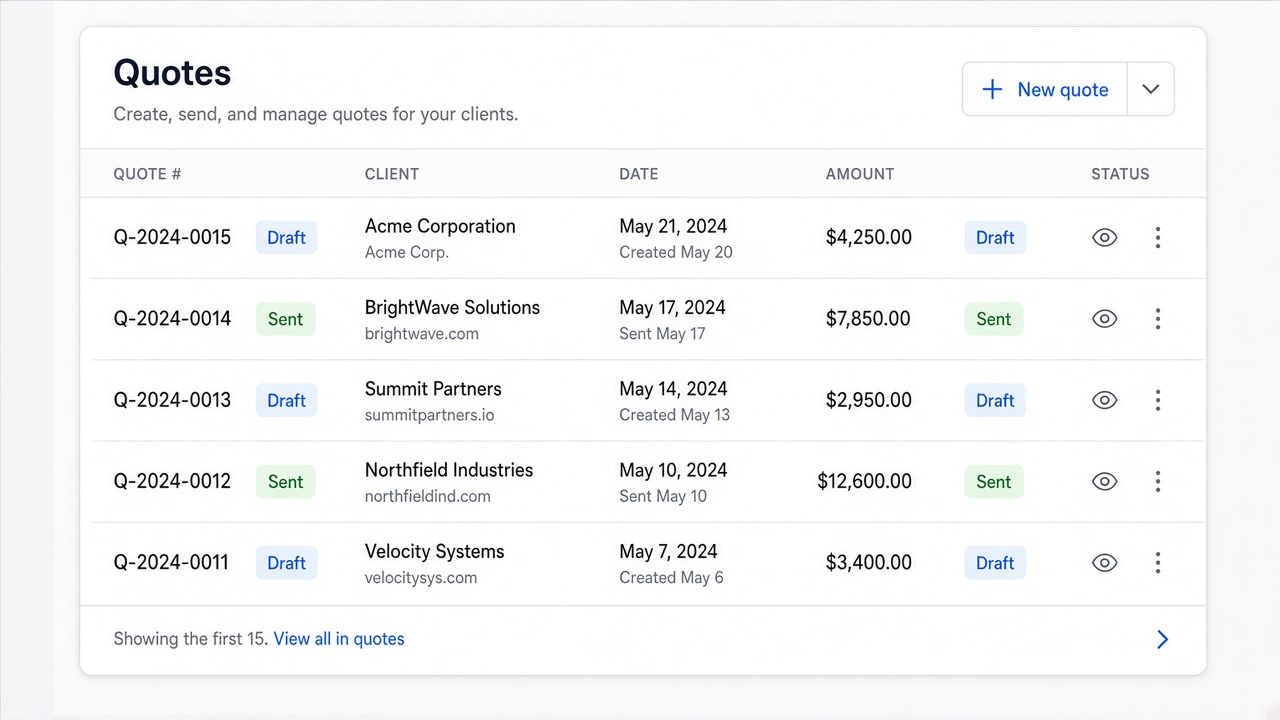
Each row leads with the job and document number, then the customer and address on the line below. Status, a date with a short context line (for example “Expires in 4 days” or “Not sent”), and the total sit alongside, with a chevron to open the document.

Status tabs at the top let you jump between groups such as awaiting reply, drafts, and accepted, with counts on each tab. Search covers job, customer, or document number. Extra filters for customer and job sit behind the Filters button. Archived documents are a footer link, next to a summary such as “7 of 7 · newest first”.

Click a column heading to sort. Sorting happens on the server, so it stays correct when the list is paginated.

Open quotes

Default footer notes for invoices and quotes

Set default footer notes in invoice and quote settings so new documents start with your preferred wording.

You can now set default footer notes for invoices and quotes. These appear at the bottom of the PDF, and new documents start with your wording already filled in.

Where to find it

Invoice settings live at /invoices/settings/ with separate pages for bank details, email, and footer notes.

Quote settings live at /quotes/settings/ with separate pages for email and footer notes.

How it works on create

When you create an invoice or quote, the footer notes field is prefilled from your settings if you have set a default. You can still edit or clear it before saving.

If a default is already filled in, Marshall leaves those notes alone and focuses on the summary and line items instead.

The create form also includes a Configure a default link so you can update the wording without hunting through settings.

Open invoice settings

Fix to documents temporarily showing up twice

You'll have a more consistent experience when uploading documents.

We had an issue where uploading a document could lead to it briefly showing twice. It was purely a cosmetic issue related to our realtime updates on the job page. This is now fixed.

It also didn't always update the document preview which is also now fixed.

Open a job

Finish leftover tasks and stages when you close a job

When you complete or archive a job that still has open tasks or SmartStages steps, you can mark them done in the same confirmation.

Closing a job should not leave unfinished checklist items behind by accident.

When you complete or archive a job from SmartStages (or mark a job complete from the job Actions menu), FitterPal checks for incomplete tasks and SmartStages steps. If any remain, the confirmation shows two options, both ticked by default:

  • Mark all incomplete tasks as complete
  • Mark all incomplete stages as complete

Leave them ticked to clean up as you close the job. Untick either option to leave that work open, the same as before. Cancel still leaves the job unchanged.

Open jobs

Deleted staff still show by name

When someone leaves your team, their name still appears on past updates, bookings, and mentions, marked as deleted.

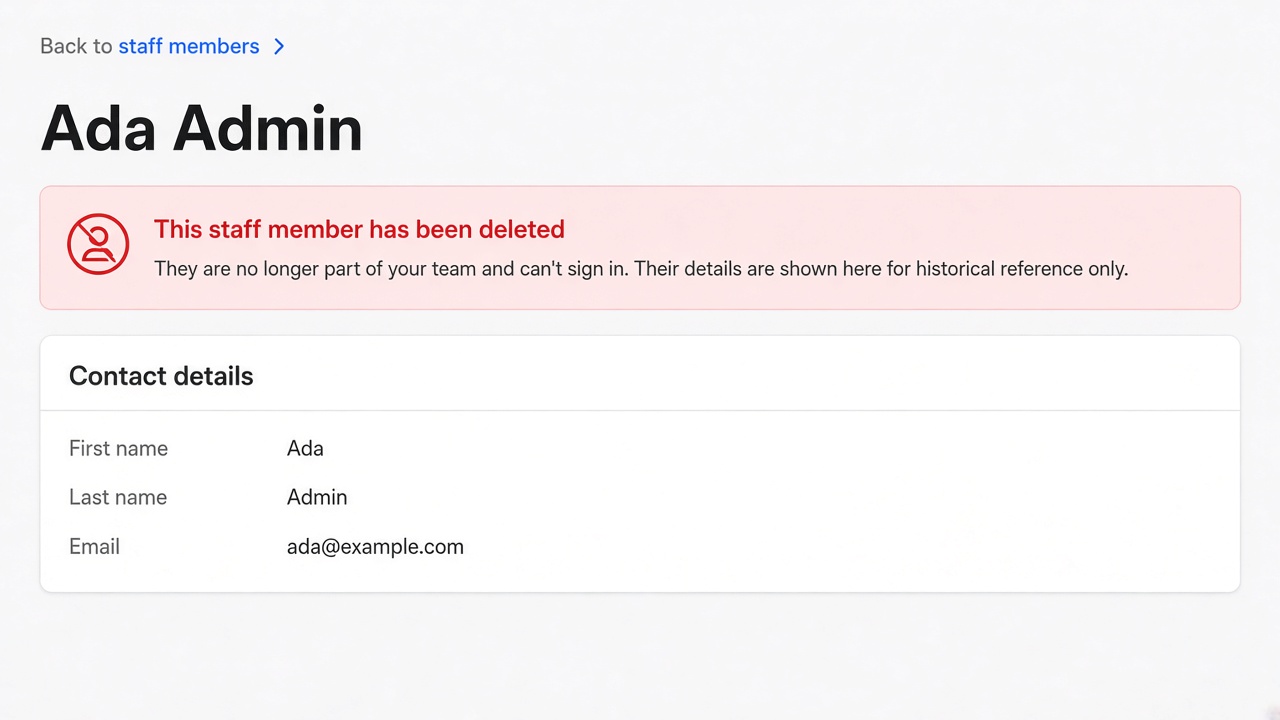
Removing a staff member no longer turns their history into a blank or “unknown” label. Past updates, mentions, and booking assignments keep their name, with (deleted) so you can tell they are no longer on the team.

Deleted staff profile with read-only banner

You can still open their staff profile to review what they were linked to. The profile is read-only while they are deleted. Re-adding them to the company clears the deleted mark.

Open staff

Faster dashboard

We've made the dashboard faster to load by showing only the most important items in each card.

The dashboard used to load every open quote, invoice, task, contract, and order into each card. On busier accounts that made the page slow to open.

Each dashboard section now limits the amount of items shown, with the ones that usually need attention first. If there are more, there's a link to open the full list.

Open dashboard