Introducing inventory management
Track materials in the yard and on vehicles, move stock, log deliveries, and get an email when a line runs low.
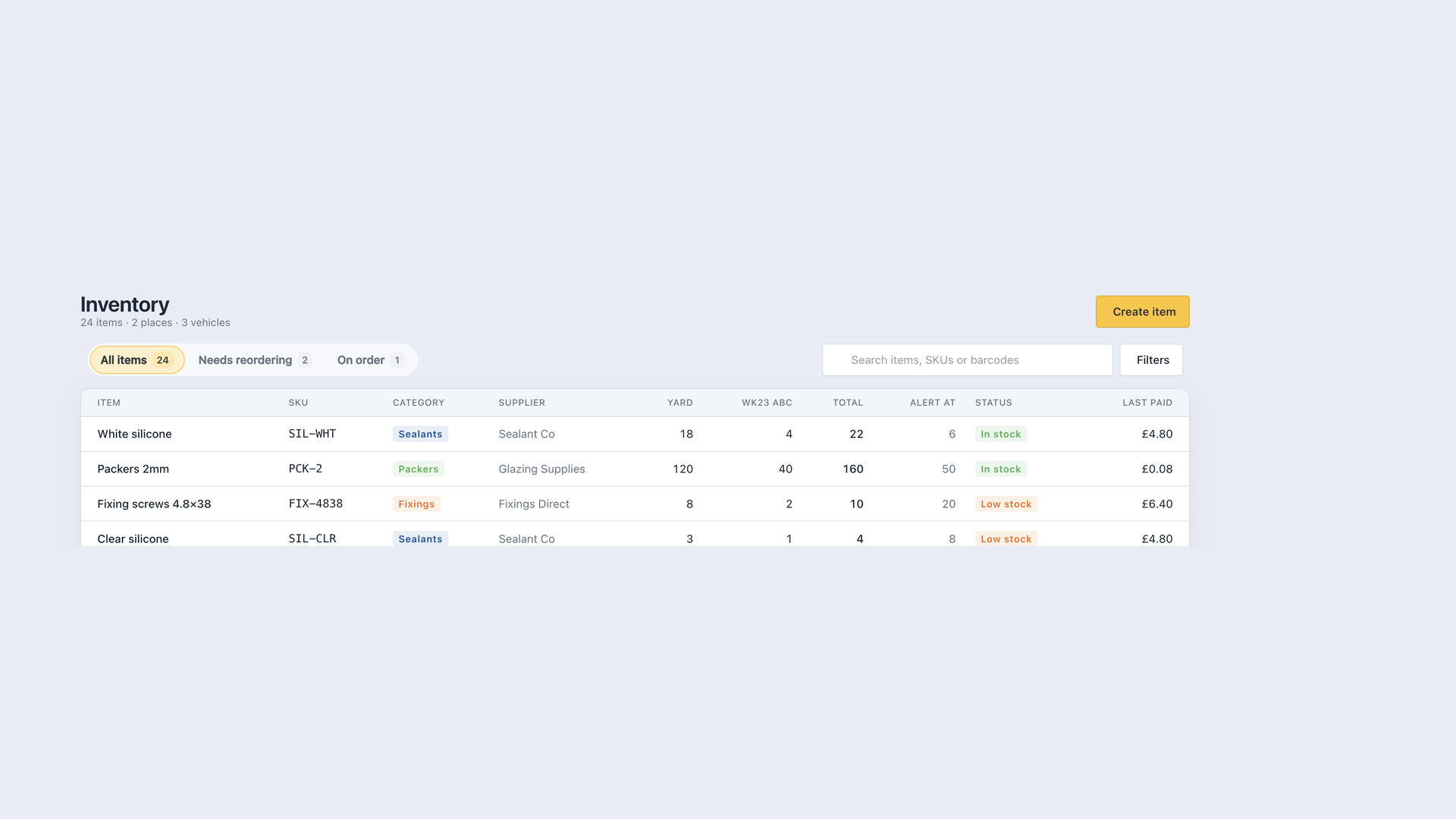
You can now keep a live count of the materials you actually hold: silicone, packers, fixings, and the rest. Open Inventory from the main menu.
Stock by item, place, and vehicle
Add a place for the yard or lockup, then add items. The same item can sit in more than one place, with a count in each. Every company vehicle also gets a place automatically, so van stock shows next to the yard.
The list is organised around items. Each row shows where the stock is. Use minus and plus to take one off or add one on, or type the quantity you can see on the shelf. Open an item to edit details, cost, supplier, alerts, and activity in one place.
Tabs help you jump to what needs doing: all items, needs reordering, on order, and reserved for jobs. Filter by place with the chips at the top. The gear icon opens locations so you can add or tidy places without leaving the page.
You can also reserve stock against a job from Inventory or from the job page Stock used tool, then mark it used when it leaves the yard.
Low stock and reordering
Set Alert when at or below on an item. The row is marked low as soon as the total reaches that number, and the page shows how many lines need attention.
Owners and admins get one email the first time an item drops to that level. Topping it back up clears the alert, so the next dip can email you again. Adding an item that is already under the level does not send that email.
You can also set a usual reorder quantity. Items below that target show under Needs reordering, so you can plan the next supplier order.
Orders, deliveries, and moving stock
When you place an order, open the item and use On order to record how many you ordered, who from, the expected date, and an optional reference. The item shows as on order and will not be flagged for reordering again.
When the goods arrive, tap Receive. The delivery form is already filled with the ordered quantity and reference. Choose Each or Total for the price paid (total works out the per-unit cost), put the stock into a place or vehicle, and attach up to five photos of the receipt, delivery note, or goods. Those photos sit on the activity with a larger preview. Tap one to open it full size.
When stock leaves the yard for a van, or comes back in, use Transfer. Choose where it is coming from, where it is going, and how many to move. Totals stay the same, and both sides are logged as a transfer.
Find an item quickly
Search Inventory by name, SKU, or barcode. Stock items also appear in the main search. Click a result to open Inventory already filtered to that item.
If you remove a supplier from your list, they can no longer be picked for new stock or orders. Existing lines keep the name with (deleted) so you can still see who supplied them.
Who can do what
Fitters can open Inventory and update quantities. Adding items, places, alert levels, on-order details, and archiving stays with owners and admins.