What's new

New features and improvements in FitterPal, as we release them.

September 2026

Hide job updates from fitters

Keep office-only notes off the fitter app by turning off Visible to fitters when you post an update.

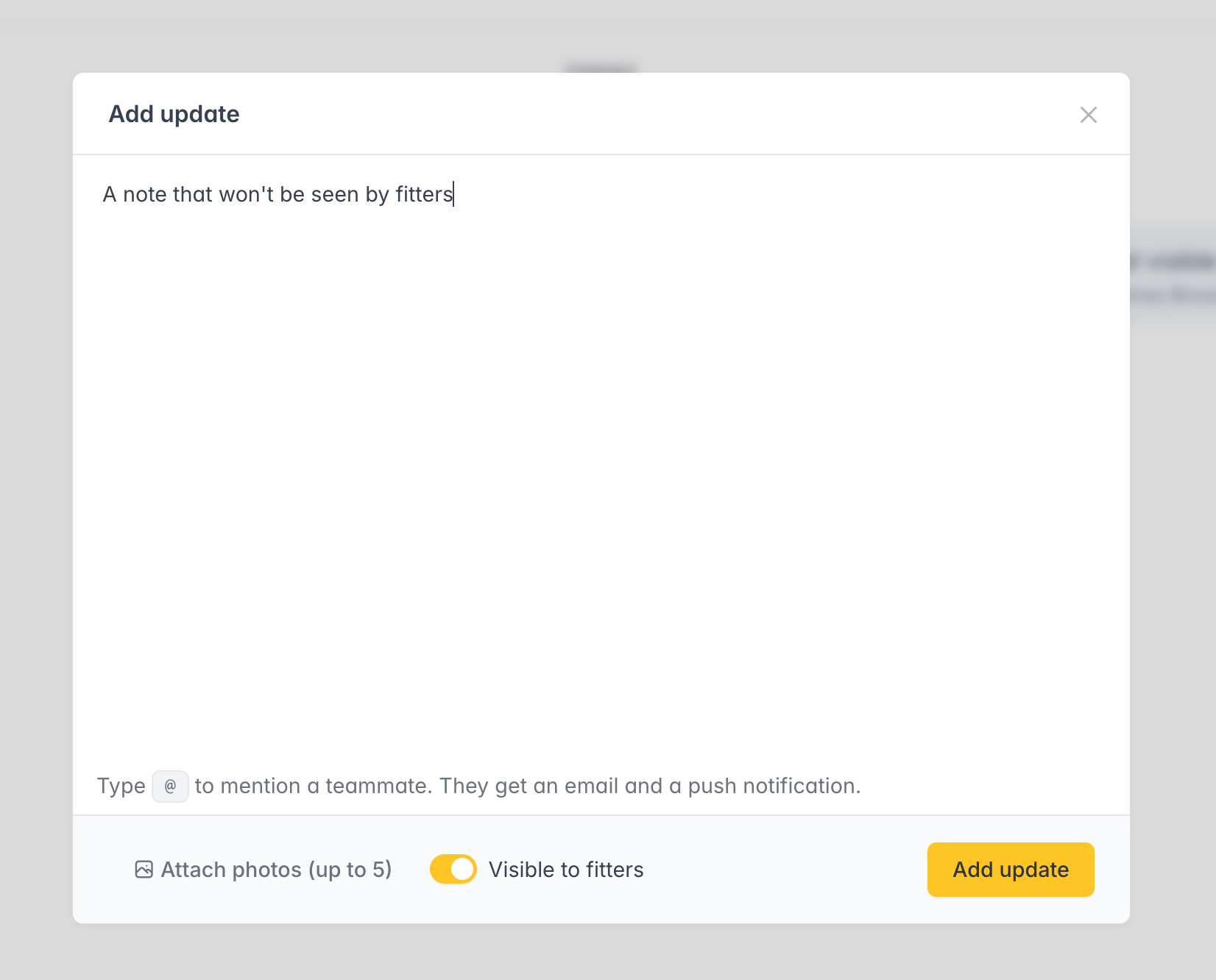
When you add or edit a job update, you can choose whether fitters can see it.

Add update modal with Visible to fitters toggle

Turn off Visible to fitters for pricing, accountant details, or anything that should stay in the office. Those updates show an Only admins label for you, and they do not appear for fitters on the job, in SmartStages, in search, or in the FitterPal app.

New updates stay visible to fitters by default, same as documents.

Open a job

Job details on form responses

Form responses now show the linked job reference, customer and address at the top, including when you print.

When you open a form response, you can now see which job it belongs to without leaving the page.

The top of the response shows the job reference, summary, customer and address in the same compact card used on the schedule. That summary is included when you print the form, so printed copies stay tied to the right job and customer.

Open forms

Limit fitters to jobs they're booked on

Choose whether fitters see every job, or only jobs they are booked on now or in the future.

You can now stop fitters opening jobs they are not booked on. This is useful when the diary should be the only list of work a fitter sees.

It is off by default, so fitters can still see every job until you turn it on.

Company default

Open Settings and, under Features, tick Limit fitters to booked jobs.

Per fitter

On a fitter's staff profile, Job visibility can follow that company default, always limit them to booked jobs, or always let them see every job. Office staff are unchanged.

What a limited fitter sees

The phone app, the jobs list, and the fitter dashboard only include jobs where that fitter has a booking that is happening now or still to come. A booking that has already finished does not keep the job on their list.

Open settings

More reliable document uploads from the app

If a document upload from the app is interrupted, retrying no longer creates a duplicate file on the job.

Uploading documents from the FitterPal app is more reliable when the connection drops mid-upload.

If the app has to retry the same file, FitterPal recognises the retry and keeps a single document on the job instead of adding another copy. You do not need to do anything differently; retries from the app just land cleaner.

Open a job

Pin your default job board

When you use more than one job board, pin the one you open most often so Jobs lands there first.

If your company uses multiple job boards, you can pin one as your personal default.

Open the board selector on the Jobs board, then click the pin next to the board you want. The next time you go to Jobs (or the Board tab), that board loads first. You can still switch to Main or any other board from the same menu.

Your pin is yours alone. Teammates keep their own defaults.

Open job board

Installation guarantees

Issue a guarantee from the job, email a PDF the customer can keep, and manage drafts from Compliance certificate.

You can issue a guarantee from a completed job and email a PDF the customer can keep with their paperwork.

How it works

Save your guarantee wording under Guarantees → Templates, choose a guarantee style, and pick a header layout (left, centred, or justified). You can also upload your own company seal on the templates page to use on every guarantee. When an installation is finished, pick that template on the job. FitterPal fills in the customer, address, completion date and issue date, and your team can tweak the wording before it goes out. The installation completion date is filled from the latest installation booking when you create a guarantee.

Sending uses the same email composer as quotes and invoices, so you can CC colleagues, reuse your messaging templates, and set a default subject and message under Guarantees → Email settings.

Issue and send freezes the guarantee, files a PDF on the job, and emails it to the customer. You can resend later, or void a guarantee if it should no longer stand.

Drafts and issued guarantees also appear on the Compliance certificate smart stage (with a thumbnail on the collapsed row), where you can issue or add another guarantee next to marking the step submitted.

Getting started

Guarantees only appear once your organisation has at least one active template. Start with the classic, formal, or modern sample, or paste the wording you already use. Before the first send, check Guarantees → Email settings if you want a custom default message. You can also open a finished job’s Compliance certificate step or use the Guarantees tool on the job.
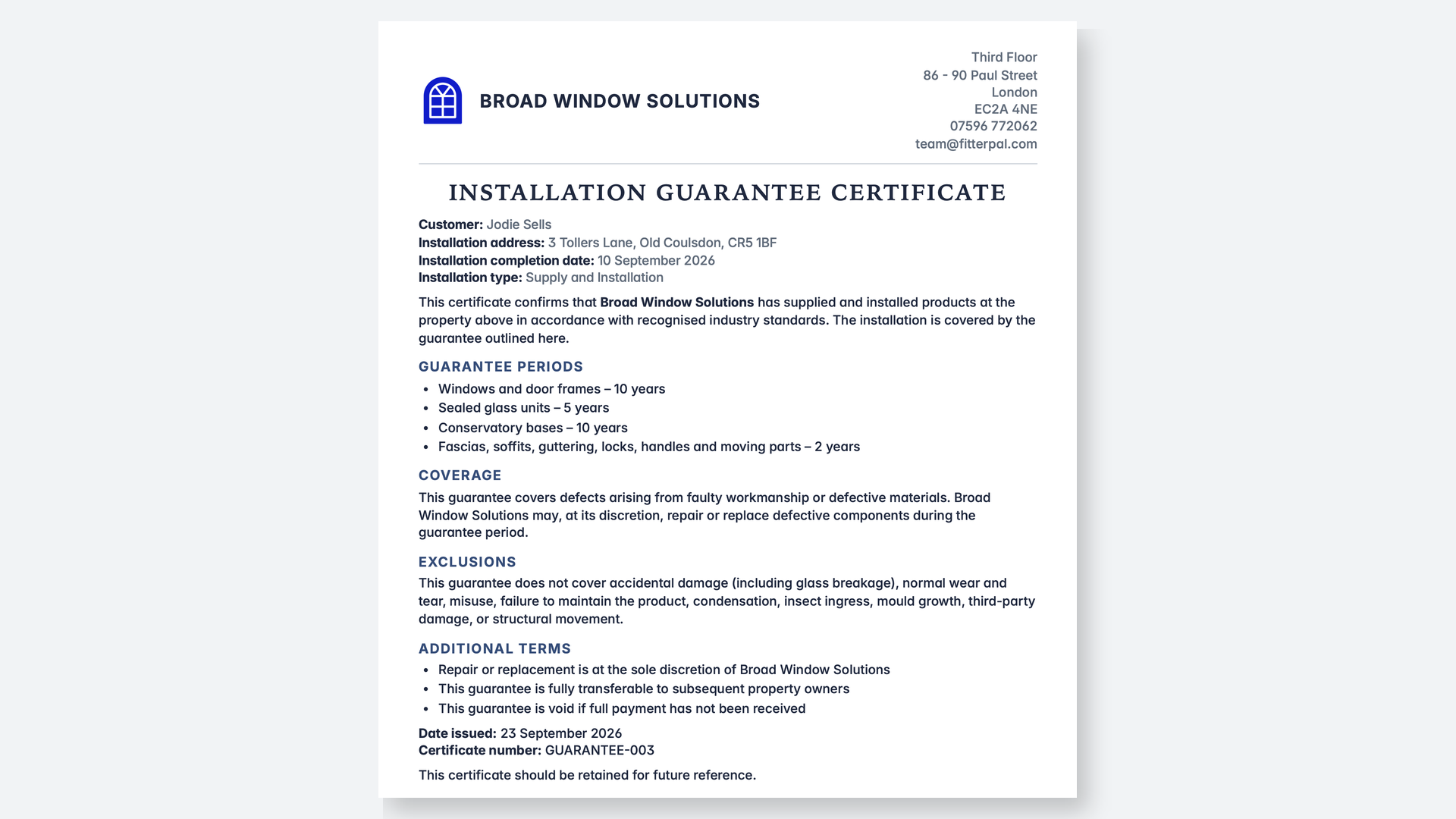
Open guarantees

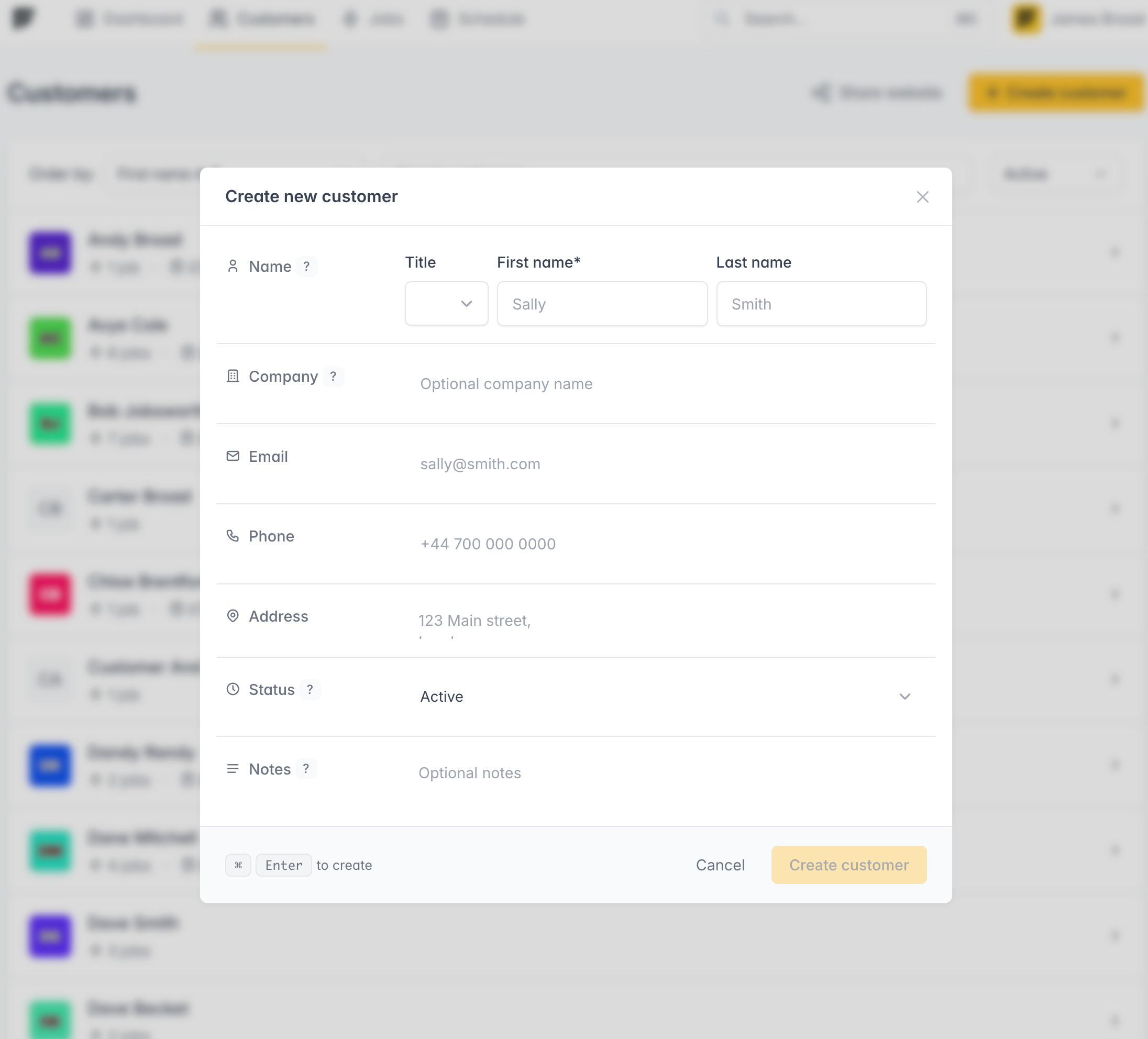
New customer creation form

Add a customer from the customers list without leaving the page, and set an optional title such as Mr or Dr.

We've modernised the customer creation form to make it quicker and easier to use. It also matches the way you create jobs.

As part of this change we've now added an optional title to the customer.

You can change the title later from the customer page or the update form.

Open customers

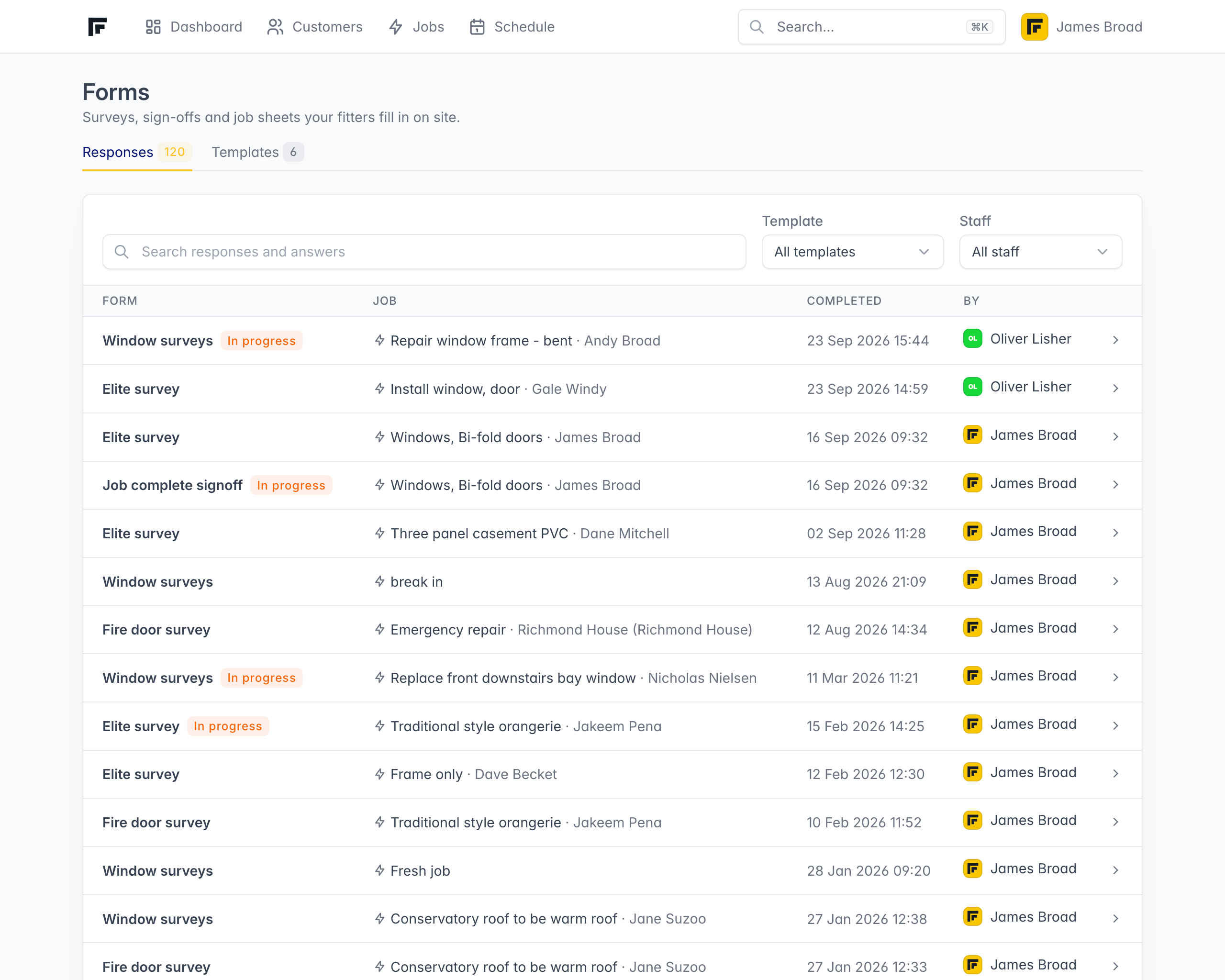
A clearer forms list for the office

Forms now has dedicated Responses and Templates pages, and office staff can open in-progress forms as read-only.

We've updated the forms section to make it easier to see form submissions and templates.

You can easily scan, search and filter the form responses.

Templates have moved to be the secondary screen as you use it less frequently.

It's now possible for admins to view in-progress forms.

Open forms

Clearer updates in SmartStages and on Updates

Staff mentions and photos on updates now show correctly in SmartStages and on the company-wide Updates page.

Updates on a SmartStages step now show teammate mentions as names (not raw codes), and any photos you attached to that update appear under it.

The company-wide Updates page also shows photo thumbnails next to each update, so you can spot site pictures without opening the job first.

Open updates

Attach photos to job updates

Add site photos when you post a job update so the note and pictures stay together in the thread.

When you add an update on a job, you can attach photos from the same composer.

Upload one or more pictures before you post. They show with that update in the thread, and they also land in the job’s Photos tool so you can find them later.

Open a job

Browse all job updates in one place

See every job update across your company, filter by teammate, and jump straight to people who were mentioned.

Job updates used to live only on each job. Now there is a company-wide Updates page, in the same spirit as Messages.

Open it from the menu, search by wording or job, and filter by who created an update or who was mentioned. Mentions in the feed link through to that person’s staff page, and each staff page has a View updates shortcut for updates they created.

Open updates

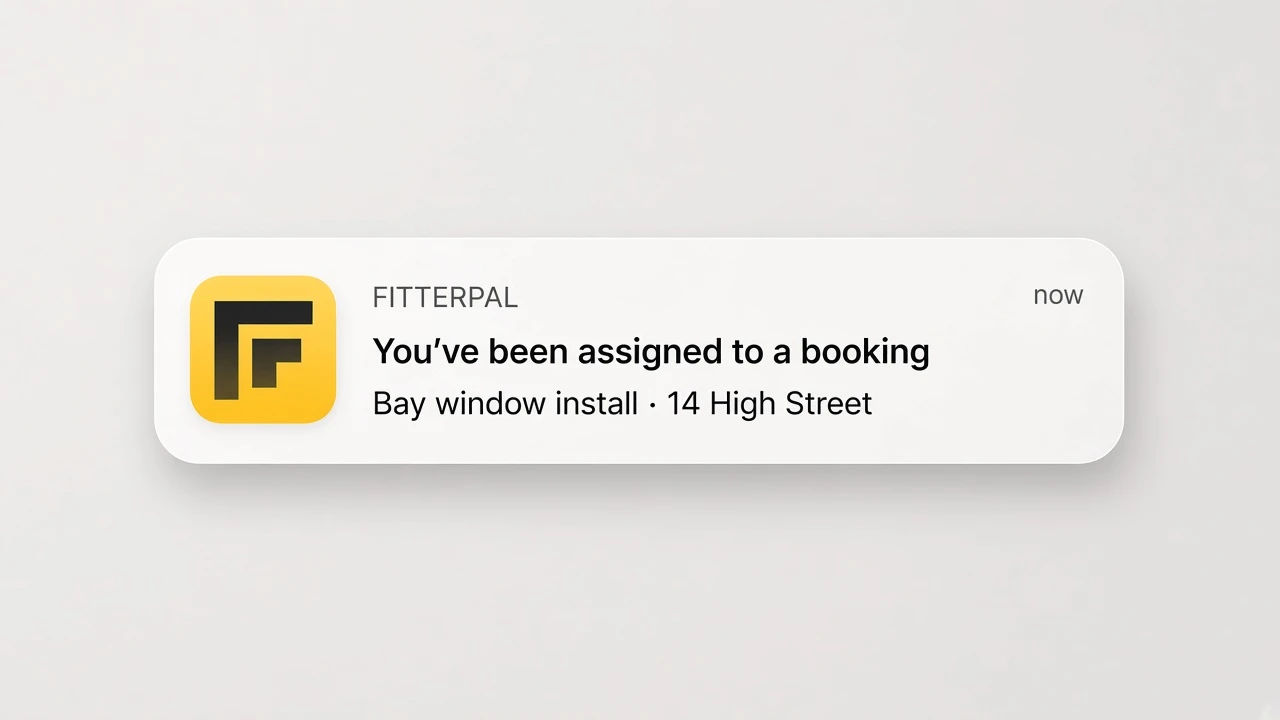
Booking and task alerts on your phone

Staff can receive a phone alert when they are assigned work or when the time of an assigned booking changes.

Staff using the FitterPal mobile app can now receive an alert when:

  • They’re assigned to a booking
  • A booking time changes
  • They’re assigned a task

Tapping an alert opens the relevant job, giving the staff member direct access to the booking or task details.

Getting started

Staff need the latest version of the FitterPal app and must allow notifications on their phone. Booking alerts follow the same company and individual preferences as booking emails.

The Mobile notifications label on the Staff list shows who has enabled them. You can also open a staff member’s profile to check their status.

Open the schedule