What's new

New features and improvements in FitterPal, as we release them.

September 2026

Marshall can draft invoices as you create them

Marshall can prepare a first draft of an invoice from information already saved on the job.

When you create an invoice from a job, Marshall can prepare a first draft using the job details, notes, products, orders, documents, and survey information already in FitterPal. The draft can include the customer summary, footer notes, and line items.

Review the draft before creating the invoice. You can keep, change, or remove any suggestion, or choose Fill in manually to start without a draft. Line items can still be edited on the next page. If FitterPal does not have a price for an item, its price is left at 0 for you to complete.

Invoices created from a quote continue to copy the quote’s existing lines without changing them.
Open invoices

Mention teammates in updates

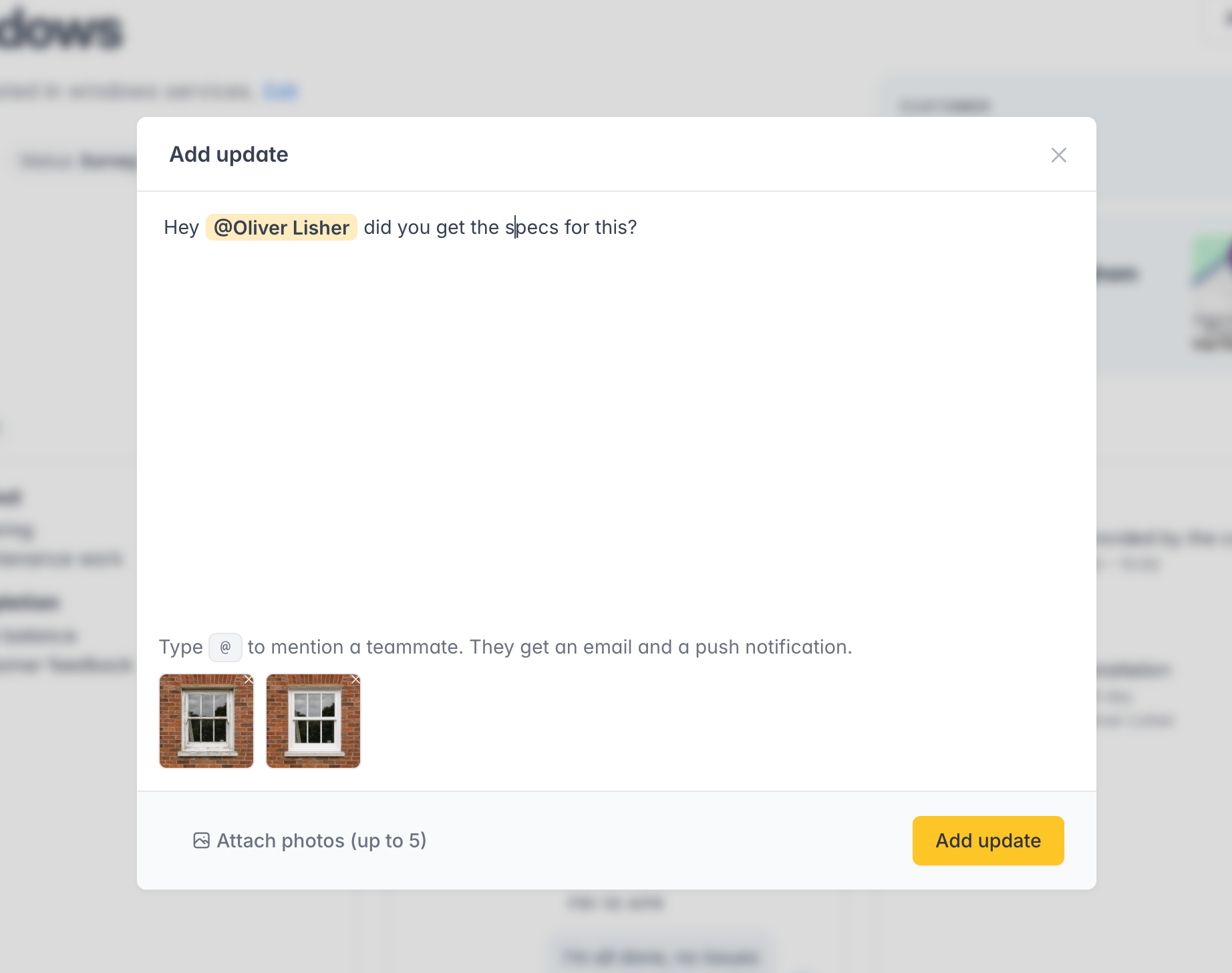
Type @ in a job update to mention a teammate. They get an email and a push so nothing important gets missed.

Job updates are where the day-to-day chatter lives. Now you can mention a teammate so they know they need to look.

When you add or edit an update, type @ and pick someone from your staff list. Their name shows in the thread, and they get an email plus a push notification on the FitterPal app (if notifications are enabled on their phone).

Mentions stay linked to the person even if their name changes later, so the thread always shows who you meant.

Open jobs

Share photos and files into FitterPal

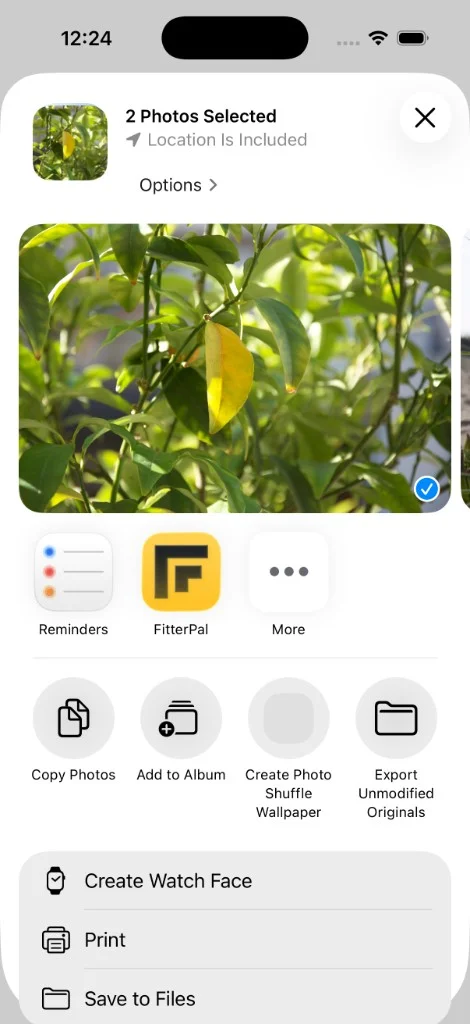
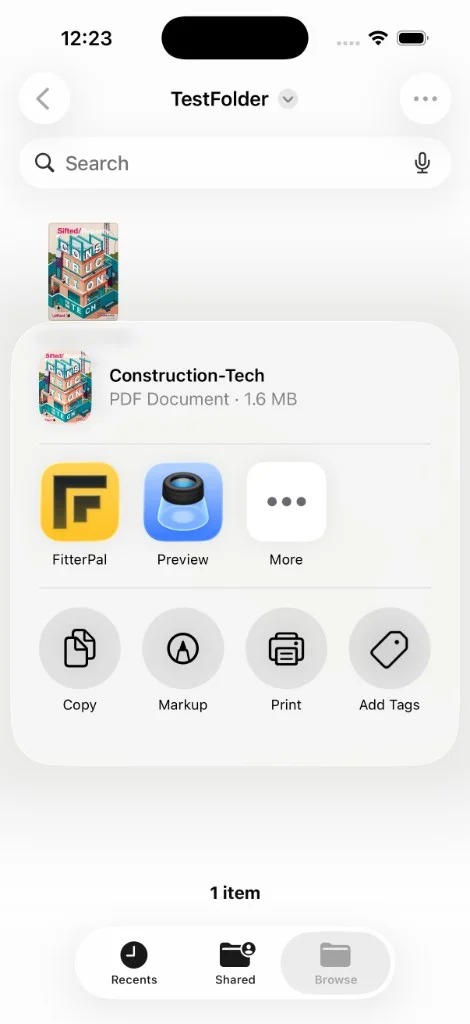
From Photos, Files, or any app that shares, pick FitterPal in the share sheet to send photos and documents into a job.

On your phone, you can share straight into the FitterPal app. Open Photos, Files, Mail, or anything else that supports Share, pick what you want to send, then choose FitterPal.

Sharing a PDF into FitterPal from Files

FitterPal opens so you can choose the job to attach to. Useful when a customer texts a photo, you have a PDF quote from a supplier, or you have site photos sitting in your camera roll.

Marshall can draft quotes as you create them

Marshall can prepare a first draft of a quote from information already saved on the job.

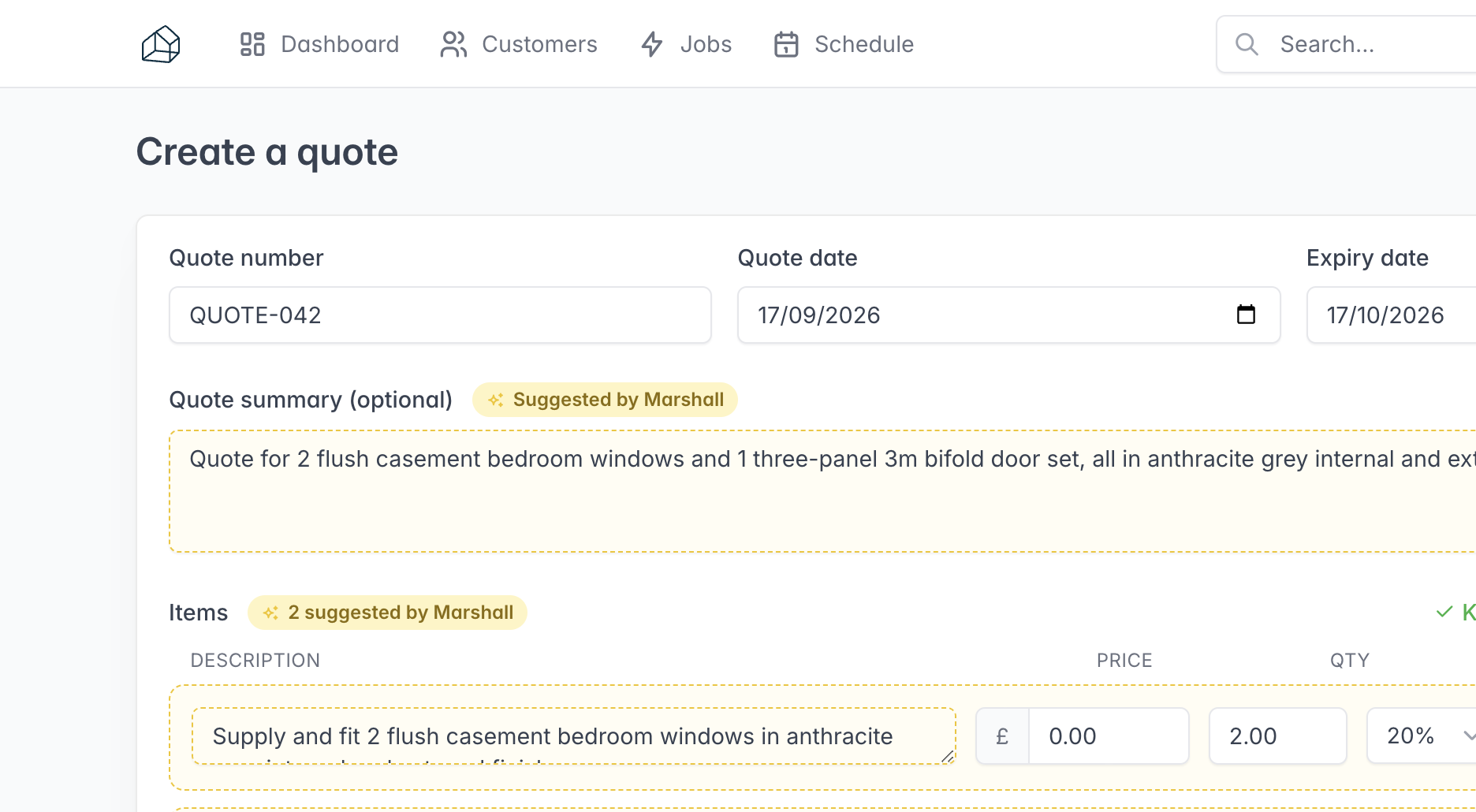
Marshall's suggested quote draft on create

When you create a quote from a job, Marshall can prepare a first draft using the job details, notes, products, orders, documents, and survey information already in FitterPal. The draft can include the customer summary, footer notes, and line items.

Review the draft before creating the quote. You can keep, change, or remove any suggestion, or choose Fill in manually to start without a draft. Line items can still be edited on the next page. If FitterPal does not have a price for an item, its price is left at 0 for you to complete.

Your choices are saved with the quote. When editing an existing quote, you can still use Suggest from job to add products, orders, or time logs.

Open quotes

Additional contacts on customers

Save additional contacts on a customer so they are available on every job and when copying people into emails.

A job often involves more than the named customer, such as a partner, tenant, site manager, or accounts contact. You can now save these people on the customer record so they are available on every job for that customer.

Where to add them

Open a customer and use Additional contacts on the left. Add or edit a person in the same way you do on a job.

On a job, those people are listed first, with a Customer badge. You can still add job-only contacts for people who only matter on that job.

What happens when you edit

Changing a customer contact from a job updates the customer record, so the change appears on every job for that customer. To avoid removing someone from every job by mistake, customer contacts can only be deleted from the customer page.

Copy them on emails

When you send a message, quote, or invoice, the CC field suggests those extra people (anyone with an email). Pick from the list or keep typing an address as before.

Open customers

Hourly emails when stages are completed

Get one hourly email showing which SmartStages steps other staff have completed on your jobs.

You can now get an hourly email when other staff complete SmartStages steps on your jobs. This makes it easier to follow progress without repeatedly checking the job board.

It is off by default, and only owners and admins can turn it on.

How to opt in

Open Settings and, under My profile, tick Stage completion emails.

What you get

If any steps were completed during the hour, one email lists the affected jobs, the completed steps, and who completed them. Steps you complete yourself are left out.

Open settings

Open job cards on your phone

Tapping a job on the board opens it on phones. Press and hold, then drag, to move it.

On a phone or tablet, tapping a job card on the board used to pick it up as if you were dragging it, so the job would not open.

A tap now opens the job. Press and hold the card until it lifts, then drag it to another column. A flick without holding still scrolls the board.

Open the job board

A clearer message composer for quotes and invoices

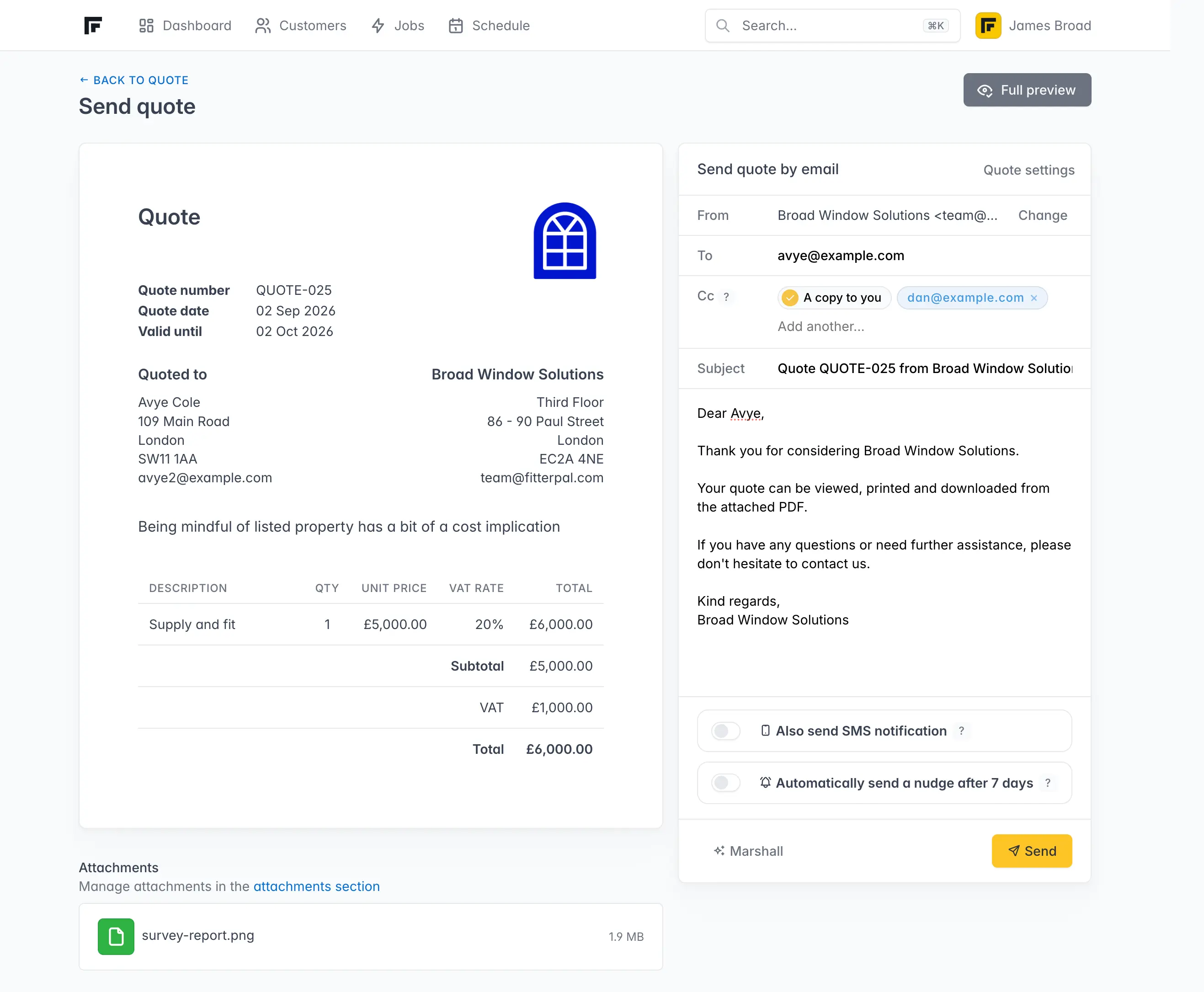
When sending a quote or invoice, you can now copy in other people and use Marshall to revise the message.

When you send a quote or invoice, the message area now matches the updated message composer. You can add CC recipients and ask Marshall to revise your wording before you send it.

The quote or invoice itself and the way your customer receives it have not changed.

Copy extra people in

You can copy other people into the email, such as an accounts contact, partner, or site manager.

You can still send yourself a hidden BCC copy for your own records.

After you send, the history on the quote or invoice shows who was copied in.

Marshall can revise the message

Marshall is now available in the message composer. Starting with your quote or invoice template, you can ask it to shorten or lengthen the message, change the tone, or correct spelling.

Review the result before sending. You can edit it yourself or use Undo to return to the original. Marshall does not send the email for you.

Open quotes

Marshall now helps you write messages

Marshall can prepare a message from the job details or help revise an email or text you have written.


Marshall is now available when you write an email or text in FitterPal.

You can write a few notes and ask Marshall to turn them into a complete message. If you are not sure where to start, it can suggest a draft using information from the customer and job.

For a message you have already written, you can ask Marshall to shorten or lengthen it, change the tone, correct spelling, or make it fit within a text message.

Nothing is sent automatically. You can review and edit the result before sending, or use Undo to return to your original wording.

Open messages

A clearer message composer

The updated message composer makes recipients, templates, attachments and delivery details easier to manage.

The message composer has been reorganised so the people receiving a message, its content, and any attachments are easier to review before sending.

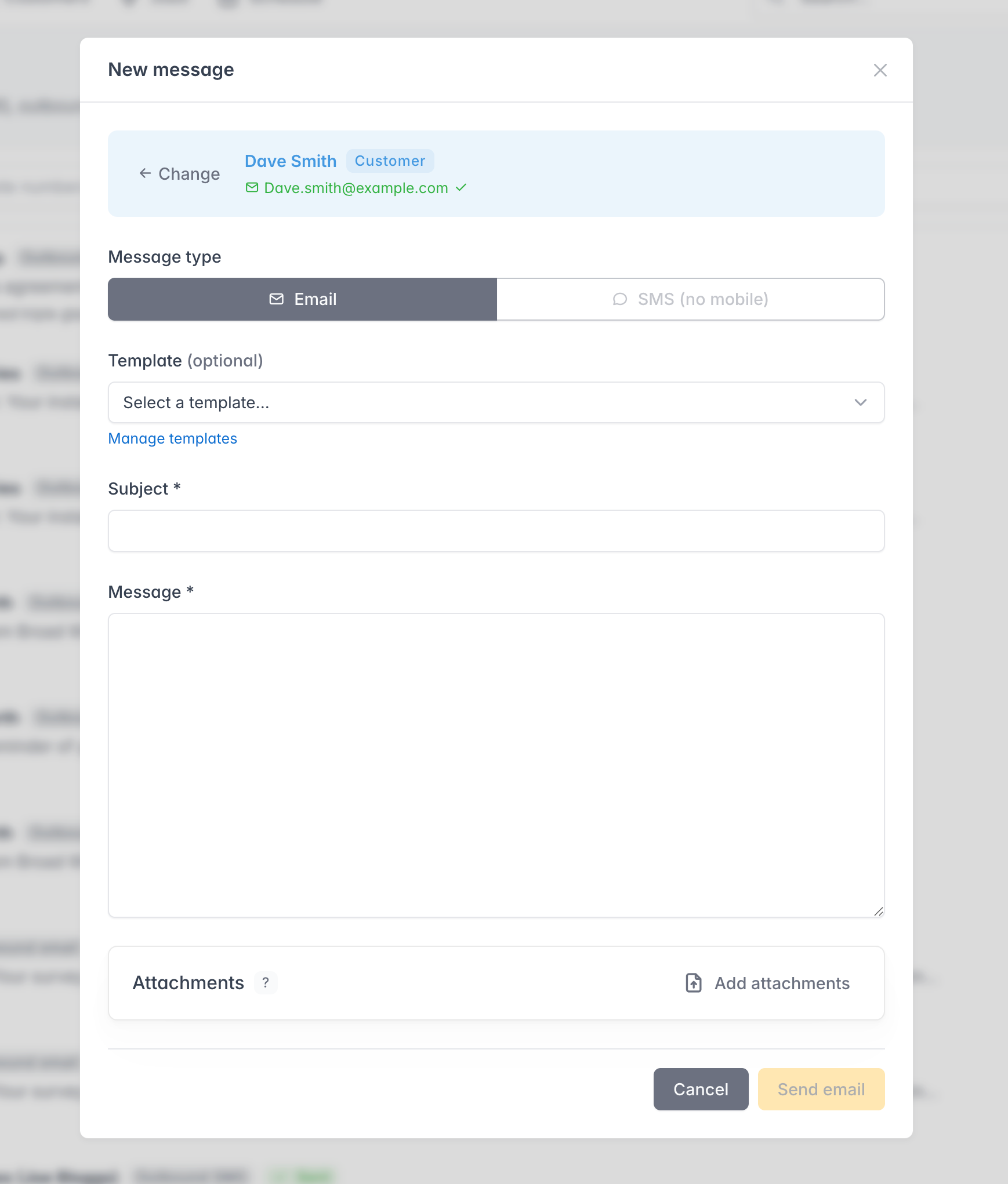
Here is the previous version:

The old message window, with To search and people to pick from

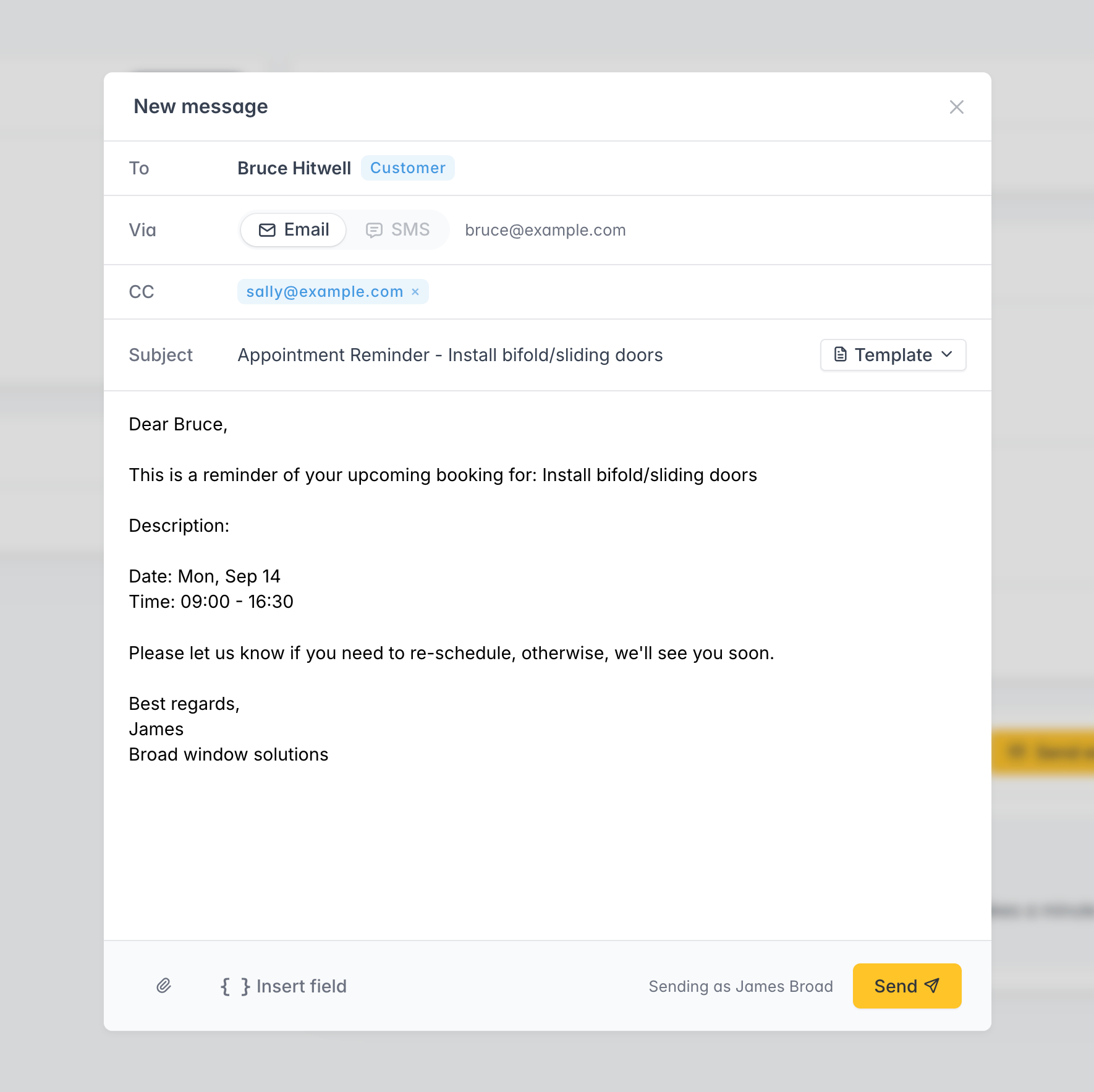
And here is the updated composer:

The new message composer

You can still use templates, add customer and job details, attach files, and check email delivery information after sending.

You can now also add CC recipients to an email when other people need a copy.

Open messages

A new home for product updates

The What's new page keeps a record of recent features and improvements in FitterPal.

FitterPal now has a What’s new page. It explains recent features and improvements, what has changed, and where to find each update in FitterPal.

How to follow along

Open What’s new from the user menu when you are signed in, or bookmark this page. New entries will be added when an update changes how you use FitterPal.