What's new

New features and improvements in FitterPal, as we release them.

September 2026

More reliable document uploads from the app

If a document upload from the app is interrupted, retrying no longer creates a duplicate file on the job.

Uploading documents from the FitterPal app is more reliable when the connection drops mid-upload.

If the app has to retry the same file, FitterPal recognises the retry and keeps a single document on the job instead of adding another copy. You do not need to do anything differently; retries from the app just land cleaner.

Open a job

Pin your default job board

When you use more than one job board, pin the one you open most often so Jobs lands there first.

If your company uses multiple job boards, you can pin one as your personal default.

Open the board selector on the Jobs board, then click the pin next to the board you want. The next time you go to Jobs (or the Board tab), that board loads first. You can still switch to Main or any other board from the same menu.

Your pin is yours alone. Teammates keep their own defaults.

Open job board

Installation guarantees

Issue a guarantee from the job, email a PDF the customer can keep, and manage drafts from Compliance certificate.

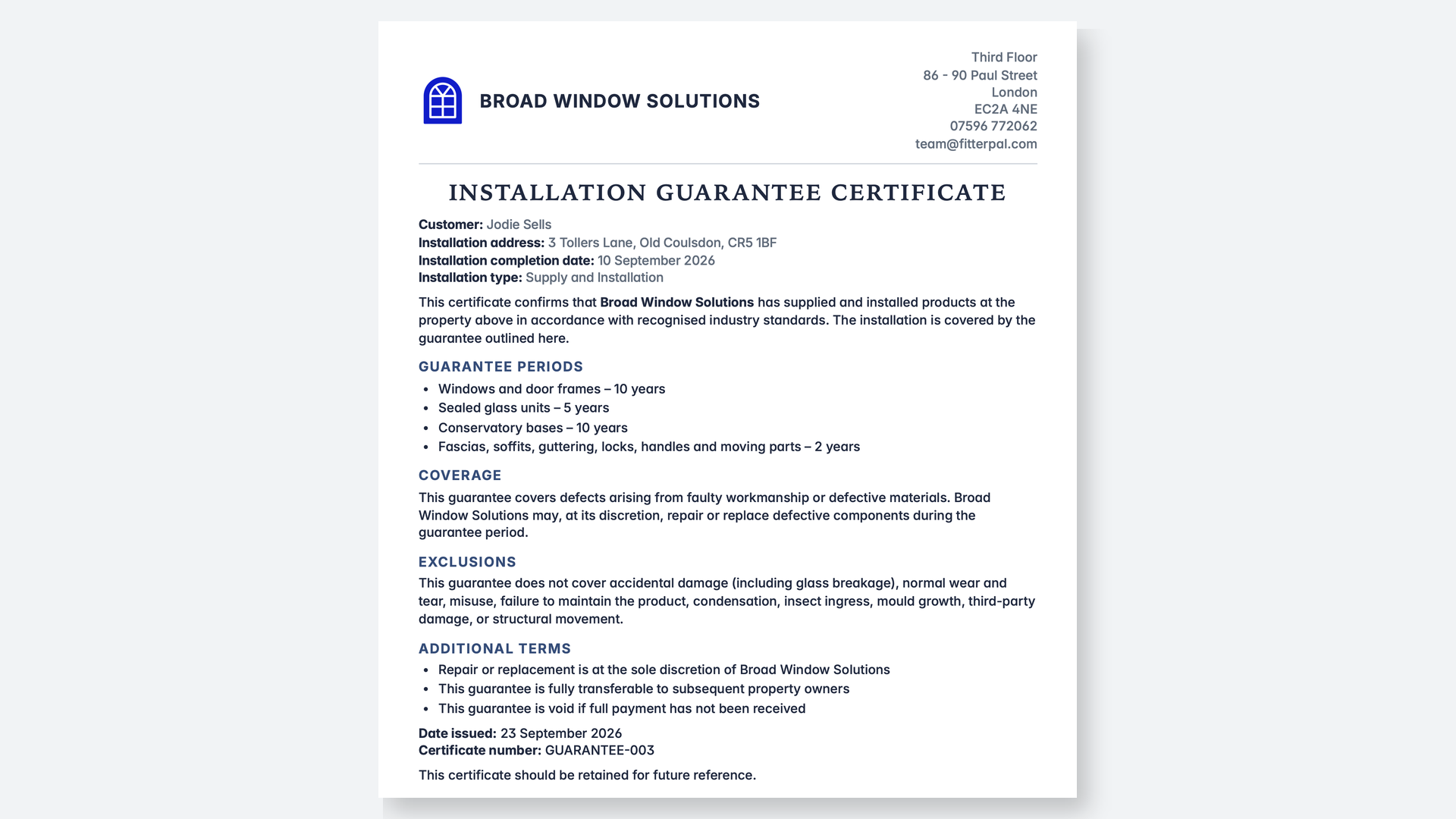
You can issue a guarantee from a completed job and email a PDF the customer can keep with their paperwork.

How it works

Save your guarantee wording under Guarantees → Templates, choose a guarantee style, and pick a header layout (left, centred, or justified). You can also upload your own company seal on the templates page to use on every guarantee. When an installation is finished, pick that template on the job. FitterPal fills in the customer, address, completion date and issue date, and your team can tweak the wording before it goes out. The installation completion date is filled from the latest installation booking when you create a guarantee.

Sending uses the same email composer as quotes and invoices, so you can CC colleagues, reuse your messaging templates, and set a default subject and message under Guarantees → Email settings.

Issue and send freezes the guarantee, files a PDF on the job, and emails it to the customer. You can resend later, or void a guarantee if it should no longer stand.

Drafts and issued guarantees also appear on the Compliance certificate smart stage (with a thumbnail on the collapsed row), where you can issue or add another guarantee next to marking the step submitted.

Getting started

Guarantees only appear once your organisation has at least one active template. Start with the classic, formal, or modern sample, or paste the wording you already use. Before the first send, check Guarantees → Email settings if you want a custom default message. You can also open a finished job’s Compliance certificate step or use the Guarantees tool on the job.
Open guarantees

New customer creation form

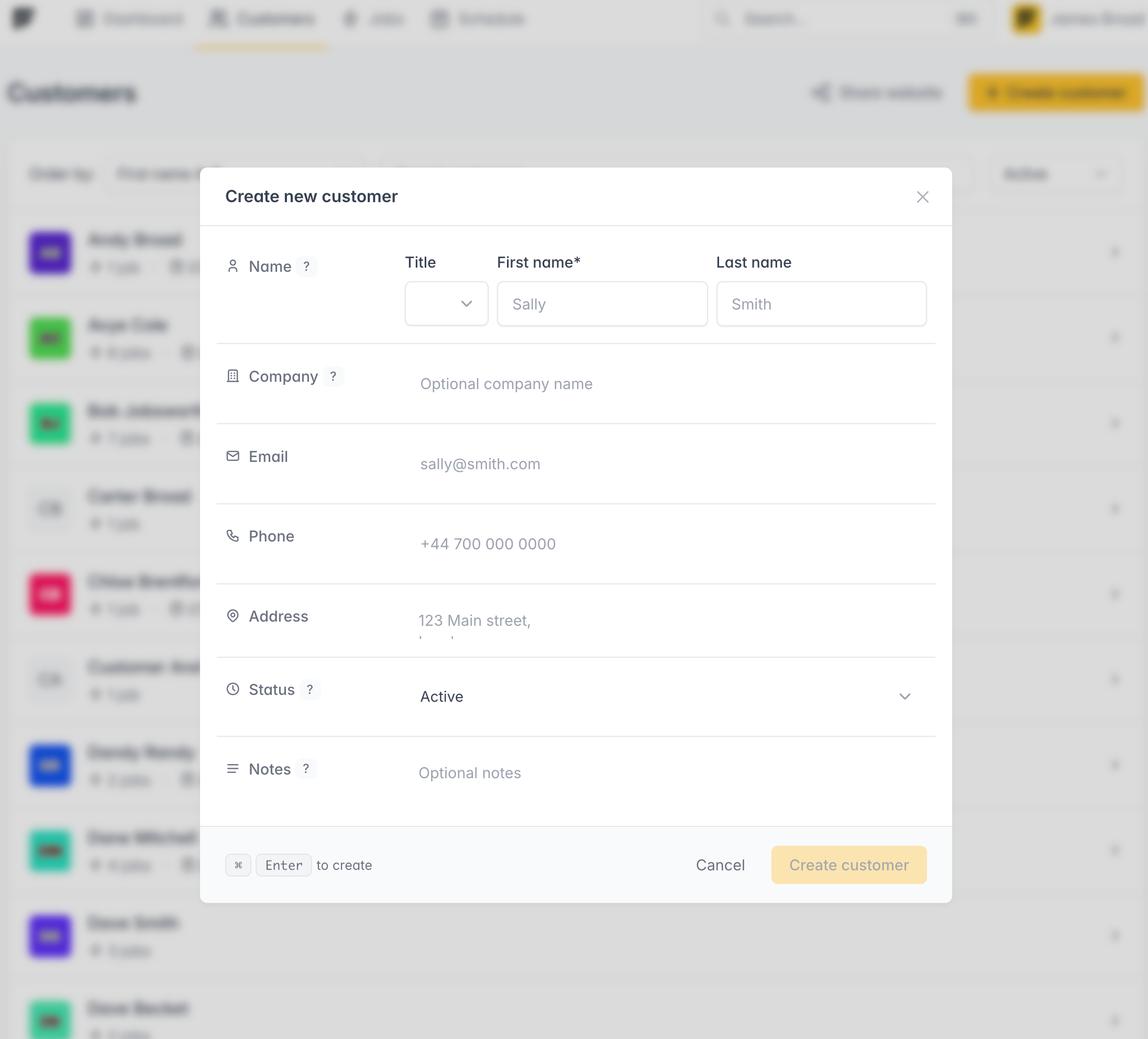
Add a customer from the customers list without leaving the page, and set an optional title such as Mr or Dr.

We've modernised the customer creation form to make it quicker and easier to use. It also matches the way you create jobs.

As part of this change we've now added an optional title to the customer.

You can change the title later from the customer page or the update form.

Open customers

A clearer forms list for the office

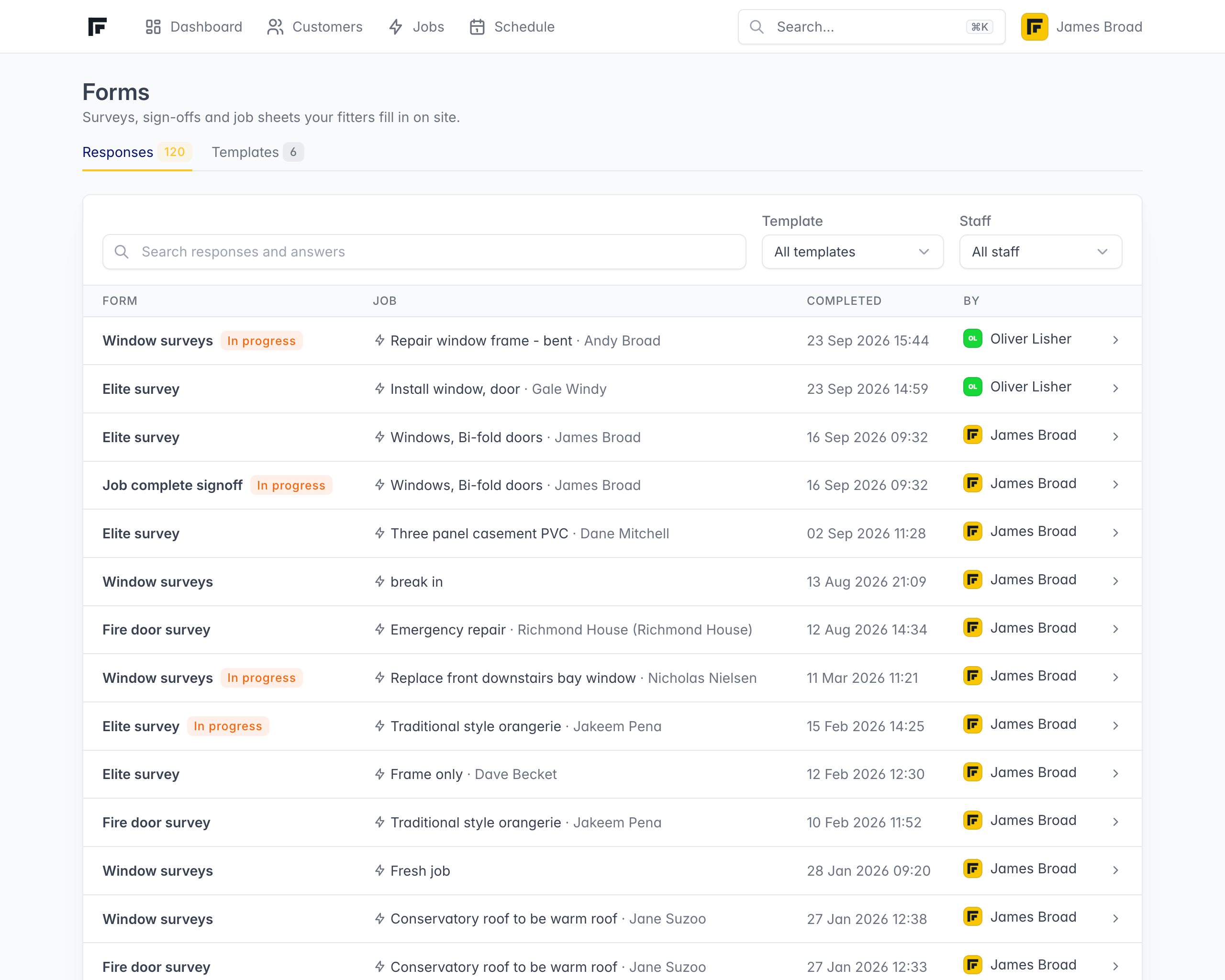
Forms now has dedicated Responses and Templates pages, and office staff can open in-progress forms as read-only.

We've updated the forms section to make it easier to see form submissions and templates.

You can easily scan, search and filter the form responses.

Templates have moved to be the secondary screen as you use it less frequently.

It's now possible for admins to view in-progress forms.

Open forms

Clearer updates in SmartStages and on Updates

Staff mentions and photos on updates now show correctly in SmartStages and on the company-wide Updates page.

Updates on a SmartStages step now show teammate mentions as names (not raw codes), and any photos you attached to that update appear under it.

The company-wide Updates page also shows photo thumbnails next to each update, so you can spot site pictures without opening the job first.

Open updates

Attach photos to job updates

Add site photos when you post a job update so the note and pictures stay together in the thread.

When you add an update on a job, you can attach photos from the same composer.

Upload one or more pictures before you post. They show with that update in the thread, and they also land in the job’s Photos tool so you can find them later.

Open a job

Browse all job updates in one place

See every job update across your company, filter by teammate, and jump straight to people who were mentioned.

Job updates used to live only on each job. Now there is a company-wide Updates page, in the same spirit as Messages.

Open it from the menu, search by wording or job, and filter by who created an update or who was mentioned. Mentions in the feed link through to that person’s staff page, and each staff page has a View updates shortcut for updates they created.

Open updates

Booking and task alerts on your phone

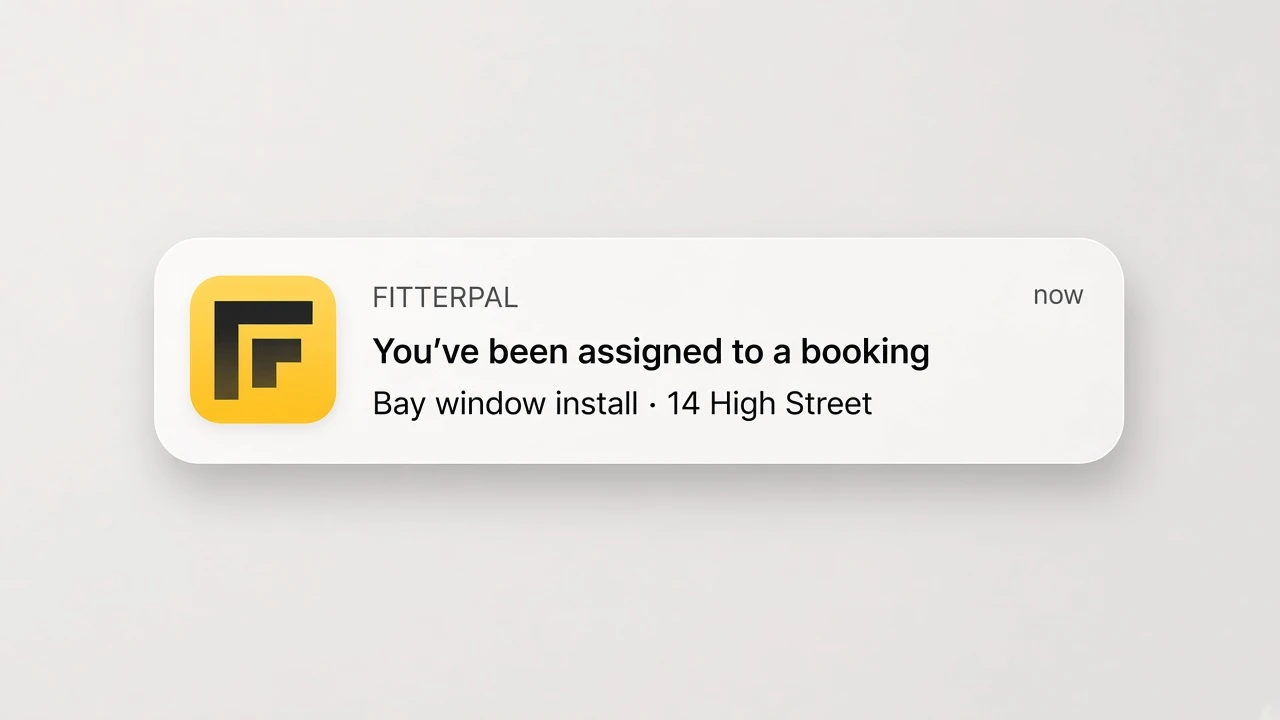
Staff can receive a phone alert when they are assigned work or when the time of an assigned booking changes.

Staff using the FitterPal mobile app can now receive an alert when:

  • They’re assigned to a booking
  • A booking time changes
  • They’re assigned a task

Tapping an alert opens the relevant job, giving the staff member direct access to the booking or task details.

Getting started

Staff need the latest version of the FitterPal app and must allow notifications on their phone. Booking alerts follow the same company and individual preferences as booking emails.

The Mobile notifications label on the Staff list shows who has enabled them. You can also open a staff member’s profile to check their status.

Open the schedule

Marshall can draft invoices as you create them

Marshall can prepare a first draft of an invoice from information already saved on the job.

When you create an invoice from a job, Marshall can prepare a first draft using the job details, notes, products, orders, documents, and survey information already in FitterPal. The draft can include the customer summary, footer notes, and line items.

Review the draft before creating the invoice. You can keep, change, or remove any suggestion, or choose Fill in manually to start without a draft. Line items can still be edited on the next page. If FitterPal does not have a price for an item, its price is left at 0 for you to complete.

Invoices created from a quote continue to copy the quote’s existing lines without changing them.

Open invoices

Mention teammates in updates

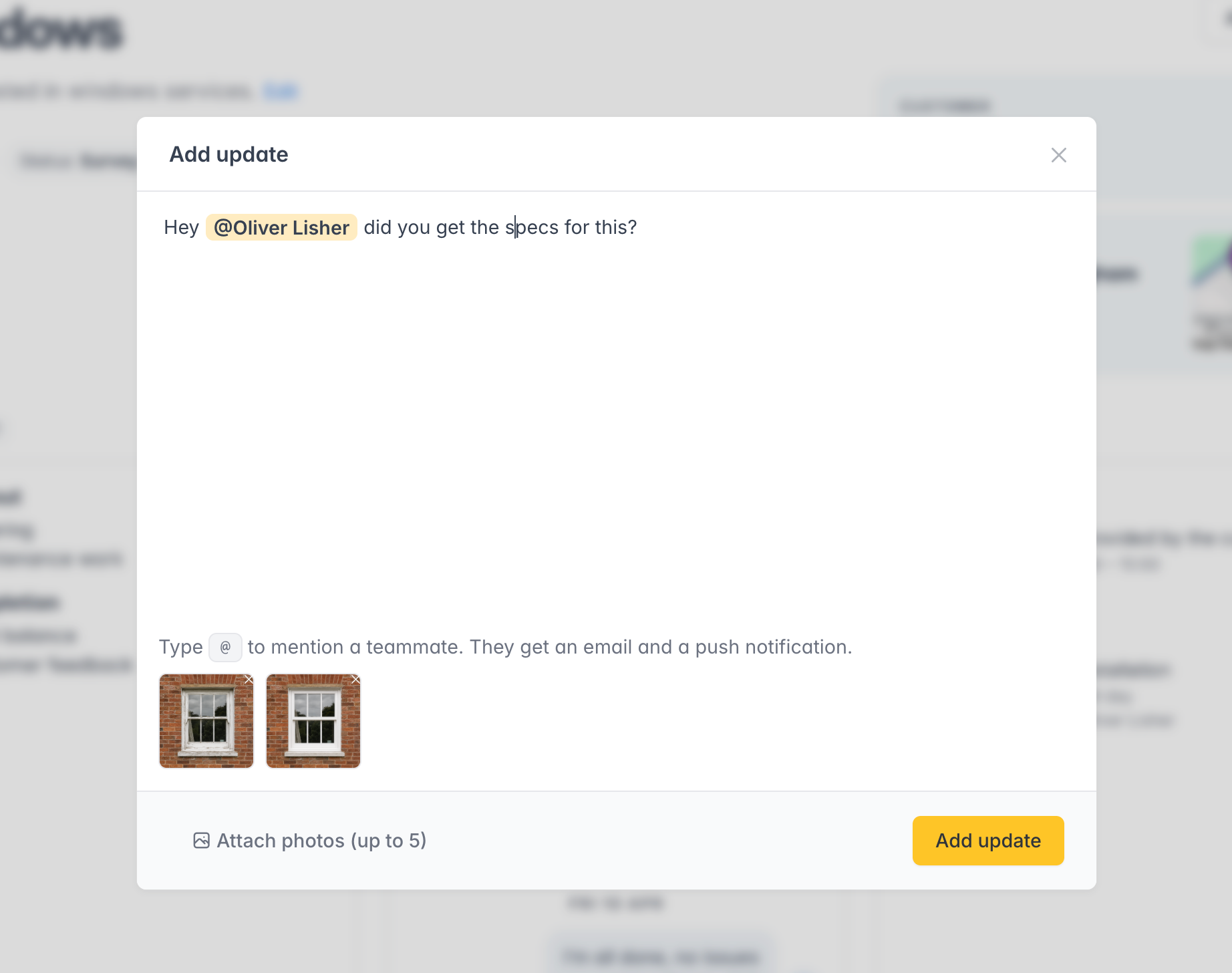
Type @ in a job update to mention a teammate. They get an email and a push so nothing important gets missed.

Job updates are where the day-to-day chatter lives. Now you can mention a teammate so they know they need to look.

When you add or edit an update, type @ and pick someone from your staff list. Their name shows in the thread, and they get an email plus a push notification on the FitterPal app (if notifications are enabled on their phone).

Mentions stay linked to the person even if their name changes later, so the thread always shows who you meant.

Open jobs

Share photos and files into FitterPal

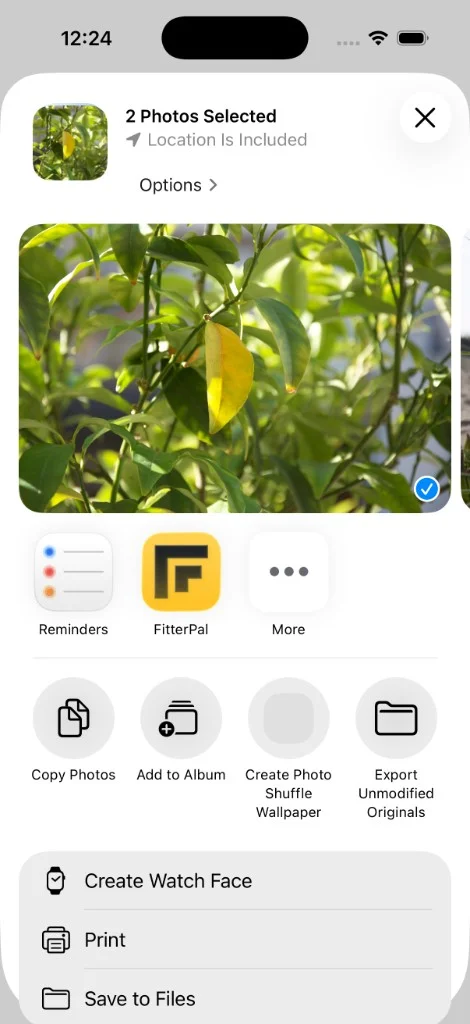
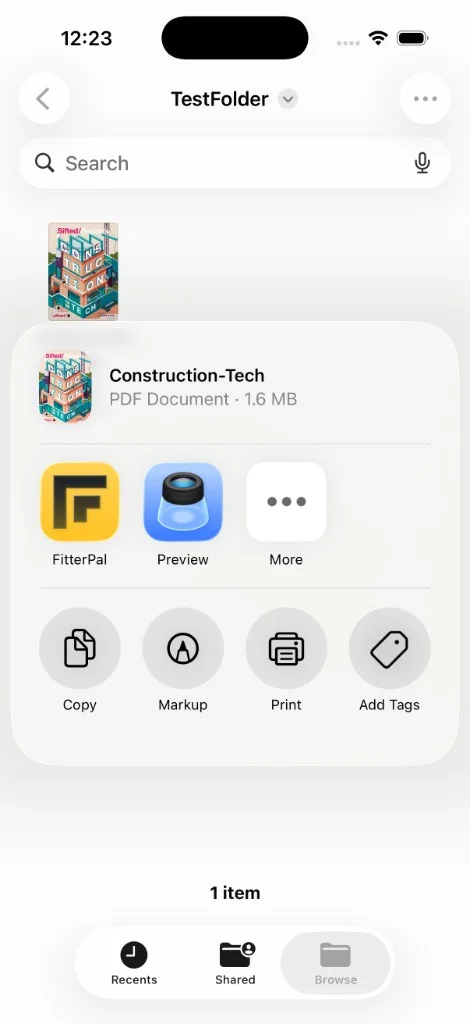
From Photos, Files, or any app that shares, pick FitterPal in the share sheet to send photos and documents into a job.

On your phone, you can share straight into the FitterPal app. Open Photos, Files, Mail, or anything else that supports Share, pick what you want to send, then choose FitterPal.

Sharing a PDF into FitterPal from Files

FitterPal opens so you can choose the job to attach to. Useful when a customer texts a photo, you have a PDF quote from a supplier, or you have site photos sitting in your camera roll.